Double Checking the Data Path with a Column Track Back Report
To be extra sure your table list is complete, you can do a track back on a column name from the fact table if you know that column to be from the same source table as the one that the custom column would be added from.
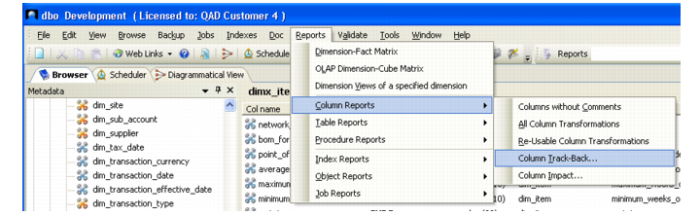
1 Go back to the Browser tab, select Reports|Columns|Column Track-back.
Note: Before the 6.5.1 version of the DWD, this option was second from the bottom in the reports list as Track back on specific column usage.
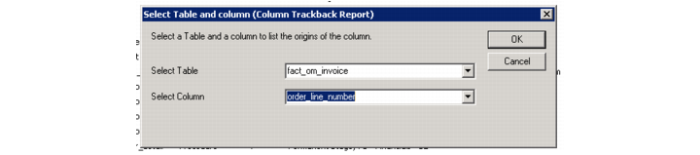
2 You are prompted with a box. Select the name of the fact_ table and a column you know comes from the source table in question. In this instance, we know that order_line_number comes from the idh_mstr table.
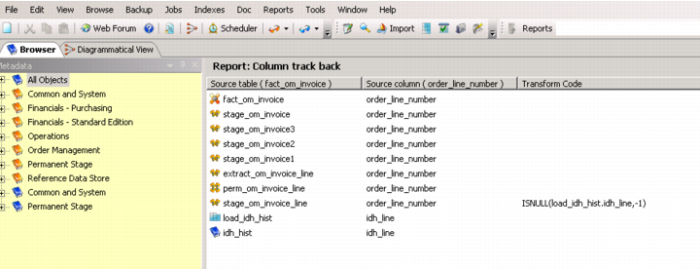
3 Once picked, click OK. A report is generated tracking back the column from the Select Table back to its source.
Note: For some dimension values in dim_ or fact_ tables, this report is more effective starting before the staging table that the dim_ value keys is defined in.
4 Aside from showing you all the tables that lead to the fact table, you also see the column names in those tables and any transform code that occurs for a column. This table-list closely matches the list we wrote down from the Diagramatic View.
5 We have identified that the QAD table the desired extra data is sourced from as existing in the dataflow as a load_ table. Now, see if the column in question also exists in that load_ table.
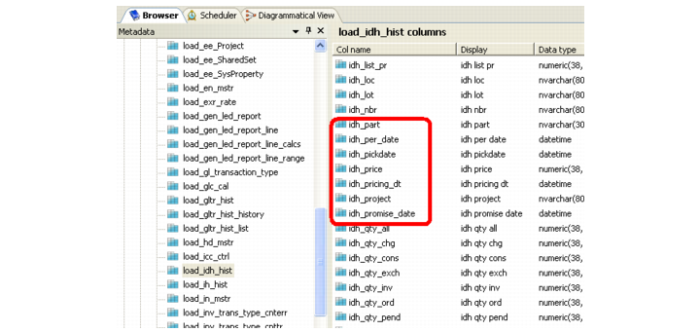
In the DWD go to Browser|All Objects|Load Table, select the load_ table, and see if the needed column is in the list.
Note: You can find columns more quickly and effectively by clicking the Col name. In this case, idh_prodline is not included in the load_idh_hist table.
6 If it did exist in the column list, the next step is to check to see if it exists in the stage_ table.
If it does not exist, review the steps in this process before proceeding.
7 Go to the Stage Table section of the Browser and find the staging table that was second in the list of tables above; in this instance, stage_om_invoice_line.
8 When you click the table name, look for the source column that is to be added in the Src column list.
Note: If the list is long and it is not immediately obvious if the column is there or not, click the header to sort alphabetically. In most instances, the column name in this first staging table is changed to something with a longer name than the source column name.
9 Continue going through this process of tracking the soon-to-be-added custom column through the stage_, perm_, extract_ and more stage_ until you find a table in the path that does not contain it.