Manually Installing the QAD BI Analytical Modules
This section covers the manual installation and configuration for the following QAD Business Intelligence analytical modules:
|
• Financials
|
• Enterprise Asset Management
|
|
• Order Management
|
• Transportation Management
|
|
• Operations
|
|
Requirements
• QAD BI DWD (version 6.6.2 or later), Data Warehouse installed and Scheduler running.
• QAD Business Intelligence Metadata installation files, in the form of QAD BI DWD application files.
Note: This consists of one set of application files for each analytical module to be installed, plus the Common set of application files.
Installation Steps
Follow these steps to manually install the QAD Business Intelligence metadata modules.
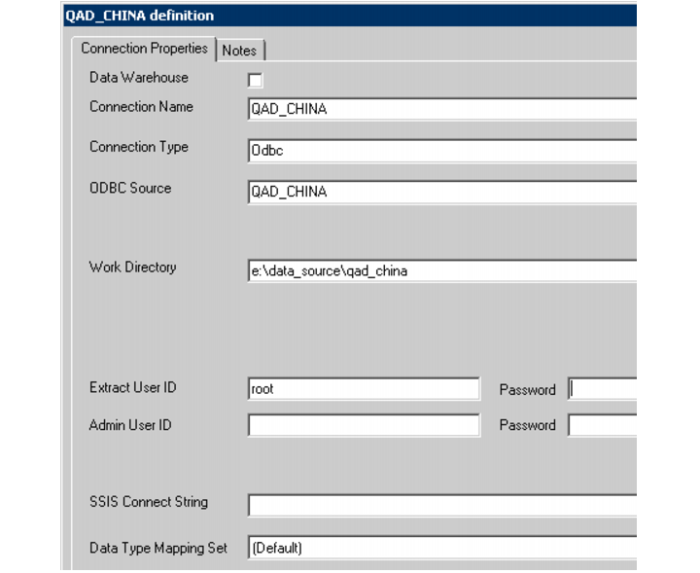
The previous installation task created the System ODBC connections to the QAD Progress databases. Now, for each one of these ODBC connections, in the QAD BI DWD in the Browser pane, create a Connection object for each:
1 Right-click Connection in the QAD BI DWD Metadata Browser and choose New Object.
2 Enter a short descriptive name for the data source; for example, QAD_MAIN, QAD_US, QAD_EMEA, or QAD_ASIA. Click OK;
3 Select a Connection Type of ODBC and select the ODBC connection.
4 Enter a work directory. This directory must be different for each QAD Data Source. Create this directory in the file system. You will create a matching directory in step 6.
5 Enter the Extract user ID and password required for the Progress database. This user must have read permission for the QAD tables.
6 Using Windows Explorer, create a directory to match the directory you entered as the Work Directory for the connection you just set up.
7 Repeat all steps for each data source.
Object Connection Definition