Example:
We are connected to an Oracle database and wish to grant access to all our tables to a new user called dssuser. This is achieved by performing the following steps.
1 Enter the sql statement 'select table_name from user_tables;' into the edit pane and run the statement. A list of tables will be shown in the results pane, and the statement will be placed in our history list.
2 Delete the select statement. Ctrl/A in the Edit pane to select all the text and press the Delete key to delete it. The edit pane is now empty.
3 Select the menu option
Sql/Set File Delimiter. A dialog will appear. Enter 'grant select on ' in the pre fix edit box, and ' to dssuser;' in the post fix box. Note the space at the end of the first statement and at the beginning of the second statement. The dialog box should look as follows:
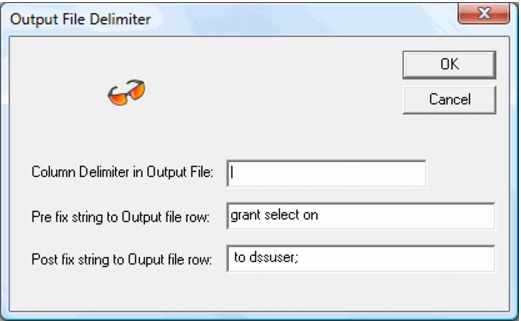
4 Choose the menu option Sql/Out -> Edit + List. This will place a tick next to this menu option to indicate that it is the current results output method. When selected this will place the results of the sql statement in the results (list) pane and in the edit pane. The edit pane will have each row prefixed and suffixed by the string entered in step 3. If multiple columns where returned they would be separated by the delimiter field as shown in the dialog example above.
5 Using the history command drop list select the sql statement entered at step 1. Push the blue 'Run shown history command' button to the right of the history command drop list. The edit pane should now be populated with a series of sql statements such as 'grant select on table to dssuser;'.
6 Choose the menu option Sql -> Out List Only. This will ensure that all future results only go to the results pane and not the edit pane.
7 Run the commands in the edit pane by pressing the 'Run' button.
Historical Statements
Each successful sql statement issued in the edit pane is stored in the history list. It is also possible to paste any information in the paste buffer into the history list.
Saving and Loading Historical Statements
The menu options for saving, loading and clearing the history statement drop list can be found under the History menu heading.