Loading History Statements
The history statement drop list can be populated from a saved history file. When statements are loaded from a file they are appended to the top of the history list. If only the information in the saved file is required then the history list must be cleared prior to the load with the History/Clear History menu option.
To load history from the default garth.hst file select the History/Load History menu option. To load history from any other saved history file select the History/Load History From... menu option and browse to the required file. As mentioned above the loaded statements are placed at the top of the history list.
Executing Historical Statements
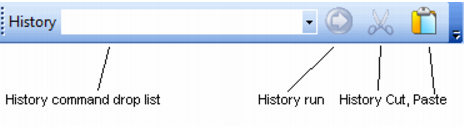
To execute a historical statement select the statement from the drop down history list and the press the blue 'Run shown history command' button.
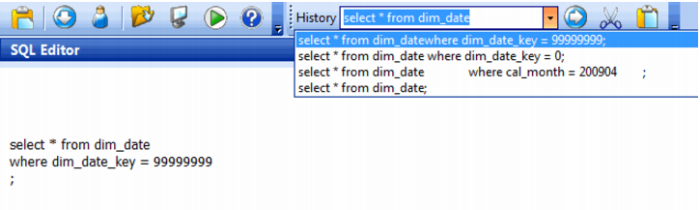
The example above shows that the statement 'select * from dim_date;' will be executed when the blue run button is pressed.
The results of the statement are displayed in the results pane in the normal manner.
Historical Statement Editing
Although it is not possible to edit a history statement, it is possible to create a new entry in the history list from an existing statement. This can be done without using the edit pane or affecting the contents of the edit pane. The process is as follows:
1 Select the history statement that you wish to alter.
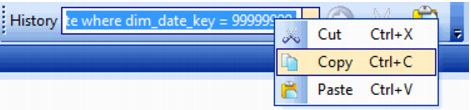
2 Make the changes in the small edit window of the history drop list.
3 Use the menu option again and select 'Copy'.
4 Paste the new statement to the history list by using the 'Paste into History list' button to the right of the history drop list.
The new statement will now be at the top of the history list and can be executed in the normal manner by selecting the blue history run button.
Historical Cut and Paste
The contents of the edit pane can be manually moved to the history list be selecting the contents, then cutting or copying the contents and pasting them to the history list by pressing the 'Paste into history list' button to the right of the history list.
The currently displayed history list statement can be copied from the history list by selecting the 'Copy from history' button to the right of the history list. In the example below this is the button with the black scissors. The statement can then be pasted into the edit pane or some other location.
Where a statement extends over multiple lines the carriage return/ line feed characters that define the end of the line are stored in the history list. In the example below the two square characters after the first dim_date represent the carriage return and line feed characters.
Multiple line statements can be cut and pasted to and from the history list without changing the statement structure. Comments are, however, removed.