Projects
These object groups are in turn stored within projects. When QAD Data Warehouse Designer is first started the special project called All Objects is the only project. This project will always contain all the objects that exist in the metadata repository. Additional projects can be created if desired. These additional projects can hold some or all of the objects as seen in All Objects. An object as such only exists once in the metadata. Therefore if we have a dimension object called dim_product, there is and can only be one copy of the object dim_product within the metadata.
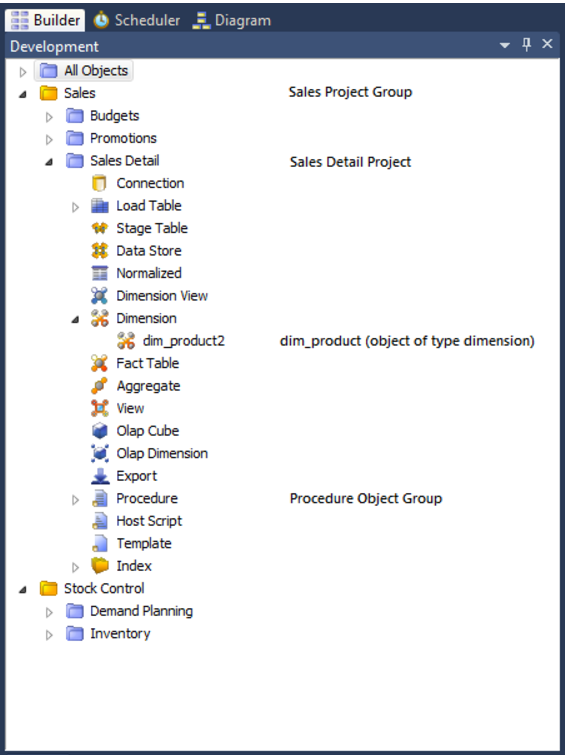
Projects are used to hold a group of objects that relate back to a similar module or analysis area of the data warehouse. In the example below we have additional projects called Budgets, Promotions, Sales Detail, Demand Planning and Inventory. In this way projects allow us to restrict the amount of information (objects) we need to deal with to just those relevant to the area being worked on.
Projects can also be used to group objects for an upcoming code promote.
The example below shows a meta repository using two project groups (Sales and Stock Control) and five additional projects (Budgets, Promotions, Sales Detail, Demand Planning and Inventory).
Note: If you delete an object using the right mouse menu, then the object will be deleted from the metadata and will be removed from all Projects. Remove the object from the project instead of deleting it.
It is important to understand that these projects are only a means of visualizing the objects. Even though an object may appear in many projects, it only exists once in the metadata.
To create a project, right click in the left pane below the last project and select New Project.
The File/New Project menu option may also be used. Projects can be renamed,removed from the project group or deleted by using the right mouse menu when positioned on the project name. Deleting a project does not delete the objects from the metadata, it simply removes their reference in the project being deleted.
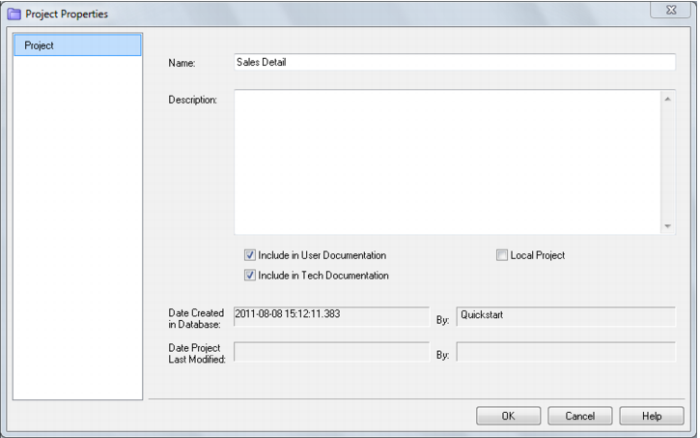
To view or make changes to the Project's Properties; right mouse when positioned on the project name and select Project properties. The following screen shows three check boxes.