Changing a Connection's Properties
Whenever a connection's properties are changed, the impact on the objects that use that connection must be considered. Load tables have information from the connection stored within their properties. This information is stored in the load objects to minimize the complexity of the scheduled tasks. The database link and database name are stored locally in each load table. When either the database link or database name are changed on a connection, QAD Data Warehouse Designer displays the Update Associated Load Tables dialog box. Click Yes to automatically update the database link and/or database name on all associated load tables.
This can also be done manually by:
1 Double clicking on the 'Load Tables' object group in the left pane. This will display all load tables in the middle pane.
2 Select those load tables that use the connection that has changed. Use standard Windows selection.
3 Right mouse to bring up a menu and select 'Change Connect/Schema'.
4 Select a different connection (e.g. Data warehouse) to change all the selected load tables.
5 Repeat step (3) and now change the tables back to the altered connection. This will update all the load tables with the new connection information.
Creating a Database Link
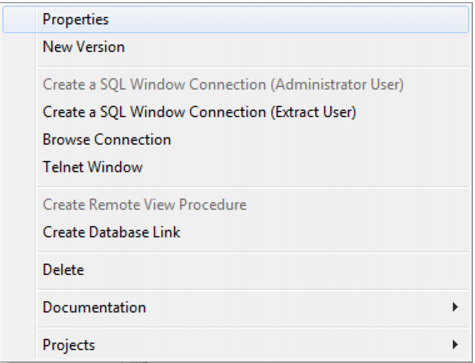
Once a connection has been set up, you can right mouse click on the connection name to receive the following menu:
If the connection is a database link connection then the link should be created.
Once selected the 'create database link' option will attempt to create a user database link to the source database. If the link already exists a prompt will appear asking if it is OK to overwrite the existing link. A number of problems can occur during this action, and your database administrator should be consulted.
For SQL Server a trusted link will be created if the extract user in the connection is set to 'dbo'. In all other cases the extract user/password will be used as the logon for the remote server.
For Oracle data warehouses the more common problems are:
1 Insufficient privileges to create the link. You need the 'Create database link' privilege in order to create a new link.
2 TNS could not resolve the connection to the remote database. The database link uses the value entered in the 'SID' field of the connection to identify the remote database. This value must be a valid entry in the Tnsnames table for the source database.
SQL Server Connections
Database
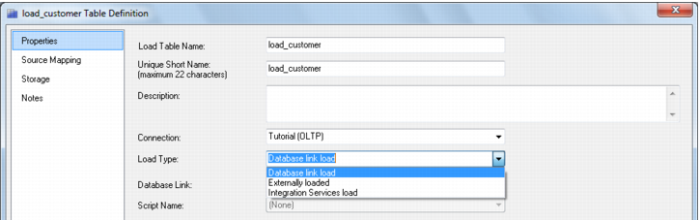
Database connection types have multiple load table types and locations that influence behavior:
Database link load - from a table in the current SQL Server database
Database link load - from a table in another database on the same SQL Server instance
Database link load - through a linked server
Integration Services load (Beta)
Data Warehouse
This section describes the connection to the Data Warehouse. Tutorial 1 gives basic instructions for creating a connection. This topic describes in greater detail the connection properties as they apply to the Data Warehouse connection. This connection is used in the drag and drop functionality to create the dimension, stage, fact and aggregate tables. It is also used to create cubes.
 TIP
TIP: The Data Warehouse connection must exist if you wish to use drag and drop to create dimensions, stage tables, fact tables, aggregates and cubes.