SQL Server Source Mapping Screen:
Remote View Extract
Note: To use Remote View Extracts, both the source database and target data warehouse database must be Oracle.
Remove view extracts are used to force a remote Oracle source system database to perform complex extraction logic in the remote source system database and return the results to the data warehouse.
When specifying a join in an extract (load) over a database link the Oracle cost based optimizer decides whether it is better to join the tables on the remote machine, or if the tables should be copied onto the local machine and the join performed locally. If the decision to copy is made for large tables this can result in huge extract times. The simplest method of forcing the join to occur on the remote machine is to create a view on the remote machine from which the extract is done.
The view is re-created every time the load table is run. Then the load table select all columns from the remote view and inserts the results into the load table over the defined database link.
The steps for creating a remote view load table are:
1 Create a connection object for the remote system, populating the following fields:
Connection Name
Connection Type => Database
ODBC Source
Database id (SID)
Database link id
Extract user name
Extract password
2 Ensure the user name and password being used to connect to the remote system have the following privileges:
create view (granted as a specific privilege and not part of a role)
compile procedure (granted as a specific privilege and not part of a role)
execute on sys.dbms_sql
3 Right click on the connection to the remote system and choose Create Database Link. When the dialog with the database link has been created message is displayed, click OK.
4 Right click on the connection to the remote system and choose Create remote view procedure. When the dialog with the Procedure dss_view_create compiled is displayed, click OK.
5 Browse the connection in the right pane.
6 Drag and drop a source table or columns of the source tables to create the required load table.
7 Create the load table in the data warehouse database by selecting Create (Recreate) from the right click menu.
8 Right click on the load table and select Source Mapping.
9 Enter a name for the remote view to be created into the Remote view name box. For example, use the name of the load table.
10 Cut or copy any existing where clause from the Where, Group etc. clauses box and paste it into the Where clause (for Remote view) box. Alternatively, enter the where clause (including any table joins, if multiple source tables are being extracted from) into the Where clause (for Remote view) box.
Note: Once the load table has a remote view name, the where clause in the Where, Group etc. clauses box is ignored and the where clause in the Where clause (for Remote view) box is used instead.
11 Click OK.
12 Load or schedule the load table.
Example remote view load table source mapping properties:
Note: During Load column transformations are ignored with Remote View Extract load tables. After Load column transformations can be used. To create a derived column on a Remote View Extract load table, add the column leaving its source table blank and setting its source column to NULL. Then create an After Load transformation to populate the derived column.
ODBC Based Load
An ODBC based load provides an extensive option for acquiring data from many sources. It will be slower than most other forms of loads, but may still be a viable option depending on the volume of data being loaded.
An ODBC based 'interactive load' when using the QAD Data Warehouse Designer tool will use the established ODBC connection to pull the data back to the local PC and then push the data to the data warehouse database via a sql ODBC statement.
A scheduler load will perform in the same way except that the data is loaded into the server that is running the scheduler and then pushed to the data warehouse database. For Oracle, this push to the data warehouse can be performed via Oracle Direct Path loading, which can be considerably faster than the ODBC sql method.
For Oracle Direct Path loading to work all dates and times must be a character string of the form 'YYYY-MM-DD HH24:MI:SS'. This is normally achieved via a 'During' load transformation such as TO_CHAR(source_date_column,'YYYY-MM-DD HH24:MI:SS')
Note: Dates must be in the correct format for Oracle Direct Path loading to occur.
The obvious disadvantage in an ODBC based load is the two network transactions required and the overhead placed on the Scheduler Server. The UNIX scheduler does not support ODBC based loads, therefore a Windows scheduler must be available to handle ODBC based loads.
Note: A windows scheduler must be available to handle ODBC based loads.
The properties screens for an ODBC based load are the same as those of a database link load. Refer to the previous section for details.
SSIS Loader
Microsoft SQL Server Integration Services (SSIS) is an Extract Transform and Load (ETL) utility that is supplied and licensed as part of Microsoft SQL Server 2005+. SSIS is built to extract data from data sources using extraction technologies such as OLEDB, transform the data using its own .NET based language and then load it into data destination. SSIS is primarily used for loading data from various sources into SQL Server, but it can be used to extract from most databases and load into any other database.
QAD Data Warehouse Designer manages the extraction and load of data into the data warehouse as part of data warehouse processing. QAD Data Warehouse Designer attempts to utilize the optimum loading technology for each supported database platform. Optimal loading performance from a database source into SQL Server is achieved using SSIS. QAD Data Warehouse Designer provides the ability to leverage the extract and load performance available from SSIS as part of the QAD Data Warehouse Designer processing. QAD Data Warehouse Designer does this by generating and executing an SSIS package dynamically at run time. Any errors or messages resulting from execution are passed back into the QAD Data Warehouse Designer workflow metadata to drive subsequent workflow actions. In the event of an error during execution of the SSIS package, the package will be persisted to disk to assist the developer with problem resolution.
Select the relevant version of SSIS in Tools/Options/Repository.
How to use SSIS loading in Data Warehouse Designer
As with any load into Data Warehouse Designer a connection to the source data needs to be created to provide extraction details. If the connection is a database load then there is additional connection information that should be supplied to utilize SSIS as a loading option. This additional information needs to be supplied on both the source connection and data warehouse connection:
SSIS Connect String is a valid SSIS connection string that can be used to connect to the data source or destination. The Reset button will attempt to construct a valid connection string from the connection information supplied in the connection details consisting of the Database ID, Database Link ID (Instance name), Provider Name, Extract User details.
Once the connection is defined then a load table needs to be created to hold data landed into the data warehouse by dragging a source table to create a load table. (see
Loading data (on page
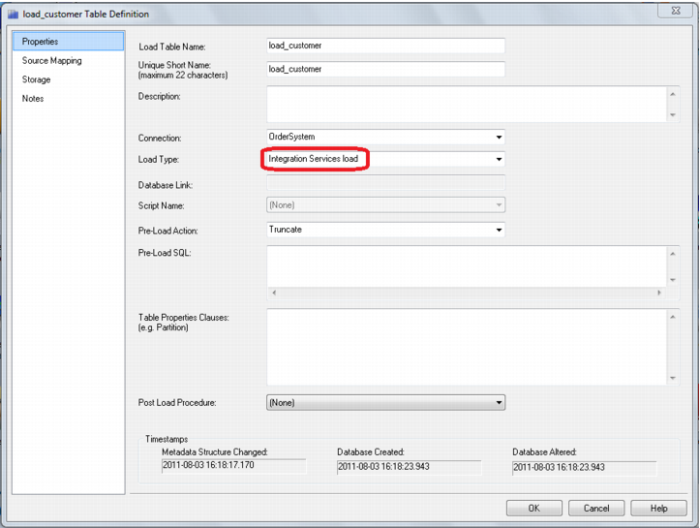
227) ) On the load table properties the Load type can be set to Integration Services (Beta). This will create and execute a SSIS package at run time to load data into the data warehouse load table.
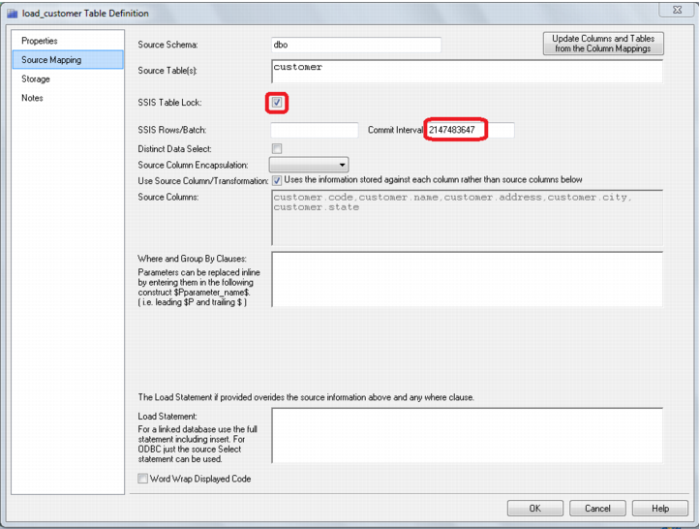
The configuration options available on an SSIS load are available on the Source Mapping tab of the load table’s properties. These options are:
SSIS Table Lock - Specify whether the destination table is locked during the load. This allows SQL Server to reduce lock escalation overheads during loading and will promote minimal logging in SQL 2008+ when a Bulk Logged recovery model is used for the database. The default value of this property is true.
SSIS Rows Per Batch – Specify the number of rows in a batch. The default value of this property is empty, which indicates that no value has been assigned.
Commit Interval - Specify the batch size that the OLE DB destination tries to commit during fast load operations. The default value of 2147483647 indicates that all data is committed in a single batch after all rows have been processed. If you provide a value for this property, the destination commits rows in batches that are the smaller of (a) the Maximum insert commit size, or (b) the remaining rows in the buffer that is currently being processed.
Troubleshooting
If an SSIS load fails due to incorrect connection strings then the SSIS package will fail to create at run time. The connection string information in both the source connection and the data warehouse connection (the destination) should be checked to ensure that they are correct.
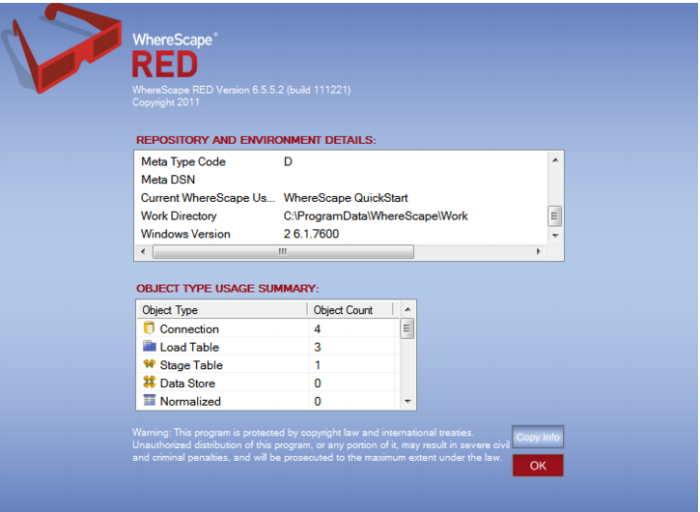
If the SSIS load fails due to incorrect extraction SQL, due to mismatched destination load table structure or due to constraint violation then the SSIS package will be created in the file system for the developer to check. The SSIS package file will be created in the QAD Data Warehouse Designer Work Directory; shown in the dialog opened from Help/About QAD Data Warehouse Designer (refer to dialog below). This SSIS package will have a DTSX file extension and can be opened using the appropriate version of Microsoft’s BI Development Studio add-in to Visual Studio.
The "Integration Services load (Beta)" in Data Warehouse Designer does not currently automatically handle spaces in source field names. You need to put [] around the source column on the column properties of the load table column that contains spaces in Excel. Failure to do so results in SSIS (runtime) crashing and returning an error message. The SSIS package file will be created in the QAD Data Warehouse Designer Work Directory; shown in the dialog opened from Help/About QAD Data Warehouse Designer (refer to dialog above).
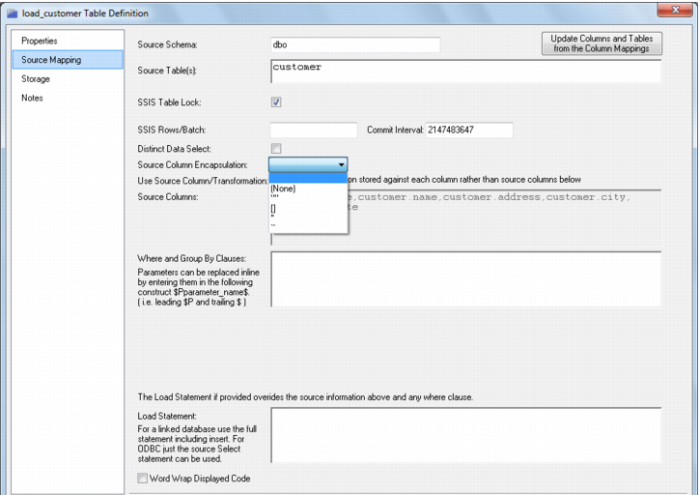
On the Source Mapping tab for a load_table, the following drop-down list gives the options for Source Column Encapsulation. We use encapsulation to ensure that column aliases are not changed during an SSIS load:
Native ODBC Based Load
A Native ODBC based load is similar to an ODBC load, except it provides a faster method to load data from non-linked databases.
A Native ODBC based 'interactive load' when using the QAD Data Warehouse Designer tool will use the established ODBC connection to pull the data back to a delimited file on the local PC and then push the data to the data warehouse database via a Bulk Insert in SQL Server, SQL*LOADER in Oracle or LOAD statement in DB2.
A scheduler load will perform in the same way except that the data is loaded into the server that is running the scheduler and then pushed to the data warehouse database.
All loaders require dates in the default format of the target data warehouse database. This is normally achieved via a 'During' load transformation using the correct casting function for the source database.
The properties and storage screens for a Native ODBC based load are the same as those of a database link load. Refer to the previous section for details. Details of the source mapping screen follow.