Rename Trigger Name
Allows you to rename the trigger file following a successful load.
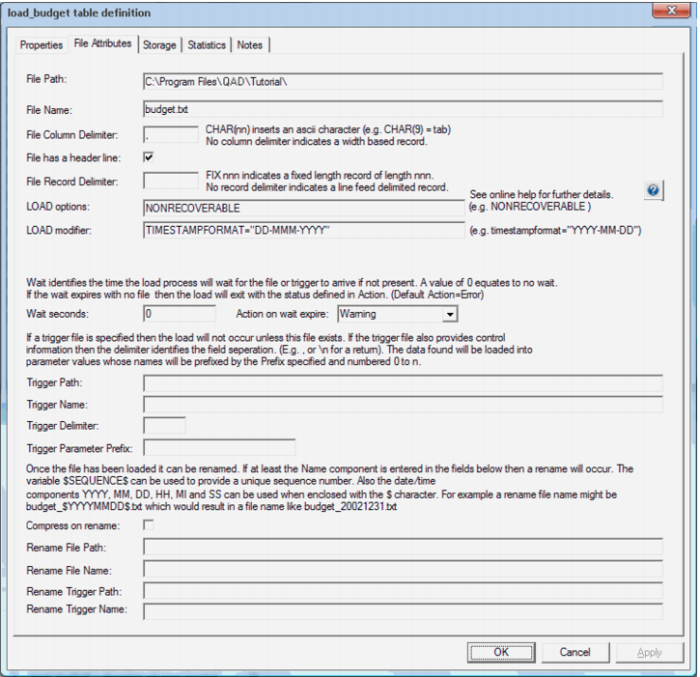
Load Table File Attributes Screen
Host Script Loads
A script based load table will have a Host Script defined. During the load process this host script is executed and the results returned.
During the 'drag and drop' creation of a load table from a UNIX or Windows file a script can be generated by selecting one of the 'Script based' load options. This script can then be edited to more fully meet any requirements.
Note: If the UNIX Scheduler is not being used and a UNIX script is generated and executed interactively the following two variables will be setup as part of the environment.
DSS_USER=username
DSS_PWD=password
Where 'username' and 'password' are the entries for the data warehouse database.
There are a number of conventions that must be followed if these host scripts are to be used by the QAD scheduler.
1 The first line of data in 'standard out' must contain the resultant status of the script. Valid values are '1' to indicate success, '-1' to indicate a Warning condition occurred but the result is considered a success, '-2' to indicate a handled Error occurred and subsequent dependent tasks should be held, -3 to indicate an unhandled Failure and that subsequent dependent tasks should be held.
2 The second line of data in 'standard out' must contain a resultant message of no more than 256 characters.
3 Any subsequent lines in 'standard out' are considered informational and are recorded in the audit trail. The normal practice is to place a minimum of information in the audit trail. All bulk information should be output to 'standard error'
4 Any data output to 'standard error' will be written to the error/detail log. Both the audit log and detail log can be viewed from the QAD Data Warehouse Designer tool under the scheduler window.
File Wild Card Loads
The loading of multiple files in one pass is best undertaken as a host script.
A generated host script contains the code to handle wild card loads and the subsequent loading and renaming of multiple files. The process for setting up wild card loads is as follows:
1 Drag one of the files into a 'Load Table' target and select one of the 'Script' based options.
2 If necessary edit the generated script and replace the load file name with the required wild card version. (For example test_result_234.txt renamed to test_result_*.txt. This load file name is defined as a variable at the start of the script.
3 If renaming or moving to another directory is required, then you may need to uncomment the rename phase and enter the desired directory or rename syntax.
4 If only one file at a time is to be processed, but still based on a wild card file name, then you may need to uncomment the break statement at the bottom of the script. This will result in the loading of only the first file encountered that matches the wild card criteria.
In every event check the generated script as it will contain instructions on how to handle wild cards for the appropriate script type (Windows or UNIX).
XML File load
XML file loads are only supported from a Windows connection. There are multiple formats for data exchange when using XML. See the following section for details on how an XML file is handled.
To load an XML file located in a Windows directory proceed as follows:
Create a connection to the Windows system.
Browse to the connection and locate the XML file.
Make Load tables the middle pane drop target by double clicking on the Load Table object group in the left pane.
Drag the XML file into the middle pane.