Extending the 'Get Key' function
If you want to keep all the information for the lookup of dimension keys in one location then extend the functionality of the existing 'Get Key' function. The normal practice in this case is to include all potential business keys as parameters. Multiple select statements can be employed to select the keys based on the appropriate business key. To choose the correct statement either use Nulls in the unused business keys or include an additional parameter to indicate which business key is being passed.
If this method is used then any stage update procedures will need to be modified to handle the new calling syntax.
Dimension Initial Build
The initial population of a dimension with data can be achieved by generating a custom procedure and then; using the right mouse on the dimension, choosing Execute Custom Procedure via Scheduler. The dimension should be analyzed once the custom procedure is completed so that the database query optimizer can make use of the indexes.
For smaller dimensions (i.e. less than 500,000 rows) run the normal 'Update' procedure against an empty dimension table. There is however a danger in this action in that the query optimizer will not have any information on the table and hence will do a full table pass when adding each new row. For a very small dimension this will not be an issue, but it will rapidly become a major problem as the row count increases. The problem with the initial update is that the database does not know to use the index that has been created for the business key, and hence does a full table pass when attempting to update/insert a record.
To prevent this problem the generated code will issue an analyze statement after 1000 rows have been added to the table. The statement used is as follows:
SQL Server: update statistics dim_table with sample 5 percent
Oracle: analyze table dim_table estimate statistics sample 5 percent for all indexed columns
DB2: runstats on table dim_table
where dim_table is the name of the dimension.
This command will be issued whenever 1000 or more new rows are added to a dimension. If this is undesirable then the code should be removed from the update procedure. It may be undesirable if a plan has been locked in for the table.
Dimension Column Properties
Each dimension column has a set of associated properties. The definition of each property is described below:
 TIP
TIP: If a database table's definition is changed in the metadata then the table will need to be altered in the database. Use the Tools/Validate table create status to compare metadata definitions to physical database tables. The option also provides the ability to alter the database table, through a pop-up menu option from the validated table name. See the example below.
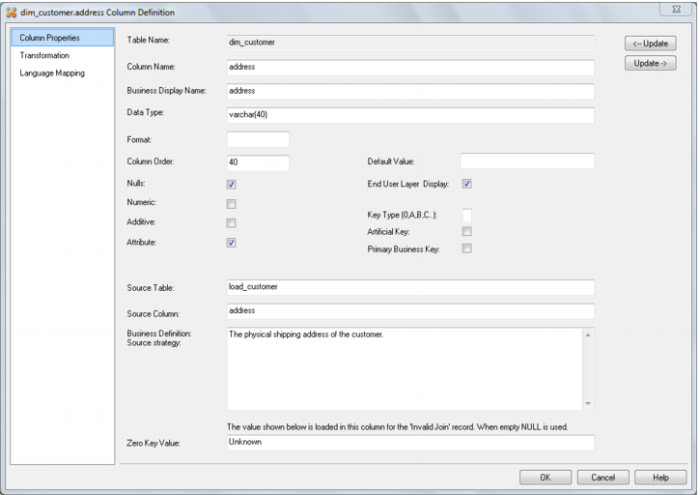
A sample property screen is as follows:
The two special update keys allow you to update the column and step either forward or backward to the next column's properties. ALT-Left Arrow and ALT-Right Arrow can also be used instead of the two special update keys.