Drag and Drop
The best approach in creating a stage table is to choose the source table that contains the most fields that we will be using and drag this table into the stage target. Then drag specific columns from the other source tables until we have all the source data that is required.
The process for defining the metadata is as follows:
1 Double click on the 'Stage Table' object group in the left pane. This will result in all existing stage tables being displayed in the middle pane. This also sets the middle pane as a stage drop target.
2 Browse the Data warehouse connection to display our load tables in the right pane. This is achieved via the Browse/Source Tables menu option and then choosing the Data warehouse connection.
3 Drag the primary load table (i.e. the one with the most columns, or the lowest data granularity) from the right pane and drop it in the middle pane. A dialog will appear to create the new staging object. Leave the object type as 'Stage Table' and change the name to reflect what is being done. For example in the tutorial the load_order_line table is dropped and a stage table called stage_sales_detail defined.
4 Once a valid name is entered the properties for the new stage table are displayed. Normally these would be left unchanged except perhaps for storage settings.
5 Once the properties dialog is closed the columns for the new stage table are displayed in the middle pane. This middle pane is now considered a drop target for this specific stage table. Any additional columns or tables dropped into the middle pane are considered additions to this stage table definition. Any columns that are not required can be deleted.
6 Drag and drop additional columns from other source tables if appropriate. In the tutorial we would now drag the customer_code, order_date and ship_date from the load_order_header table.
7 Drag in the dimension artificial key from each dimension that is to be joined to the stage/fact table. We can only join a dimension if a business key exists amongst the stage table columns or it is possible to derive that business key in some way from the columns or other dimensions.
Note: If a column is being used to join information from two or more source tables, that column must only appear once in the stage table. It is irrelevant which table is used to create the column in the new stage table.
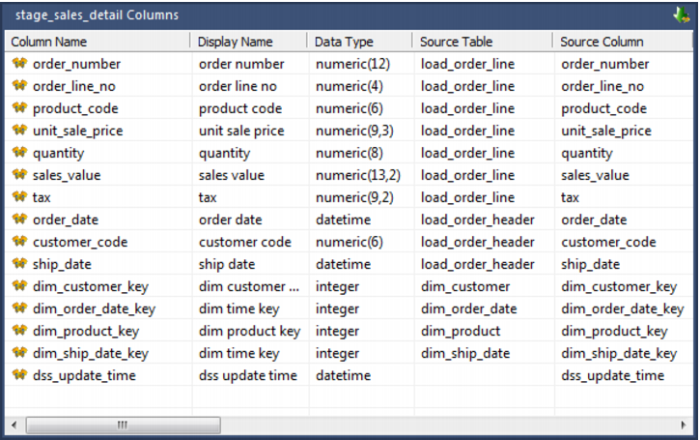
Once completed our list of columns for the stage table should look something like the list below. Note the source table for each column.
The source table (src table) reflects where each column was dragged from. In the example above the bulk of the columns came from the load_order_line table, and the customer_code, order_date and ship_date came from the load_order_header columns. These two load tables will be joined via the order_number column. This order_number column appears in both load tables but is sourced, in this example, from the load_order_line table. Each dimension artificial key was dragged from its appropriate table. The final column 'dss_update_time' was generated by QAD Data Warehouse Designer and has no source.