Staging
>
Removing the Update Component
Removing the Update Component
Once we have resolved any data issues we would normally remove the update component to speed up the processing of the stage data. There are two ways of doing this. Firstly we can clear the 'Include update statement' check box when defining the table business key. This will result in a procedure with only an insert statement. The other option is to do it manually as follows:
There are normally three steps to removing the update component. These being:
1 The update makes use of an index that can also be deleted in most situations.
2 The actual 'Update' statement can be removed from the code such that the insert is always executed.
3 The procedure also includes an analyze of the table after 1000 rows have been inserted. This code is present to ensure that the index is used in the update. We can now remove this code. It would normally look like the following (Oracle version):
--=======================================
-- If 1000 or more rows inserted then perform an analyze
--=======================================
IF v_insert_count >= 1000 And v_analyze_flag = 0 THEN
v_analyze_flag := 1;
v_Sql := 'analyze table stage estimate statistics sample 5 percent for all indexed columns';
execute immediate v_Sql;
END IF;
Stage Table Column Properties
Each stage table column has a set of associated properties. The definition of each property is defined below:
If the Column name or Data type is changed for a column then the metadata will differ from the table as recorded in the database. Use the Tools/Validate table create status menu option to compare the metadata to the table in the database. A right mouse menu option of 'Alter table' is available when positioned on the table name after the validate has completed. This option will alter the database table to match the metadata definition.
 TIP
TIP: If a database table's definition is changed in the metadata then the table will need to be altered in the database. Use the Tools/Validate table create status to compare metadata definitions to physical database tables. The option also provides the ability to alter the database table, through a pop-up menu option from the validated table name.
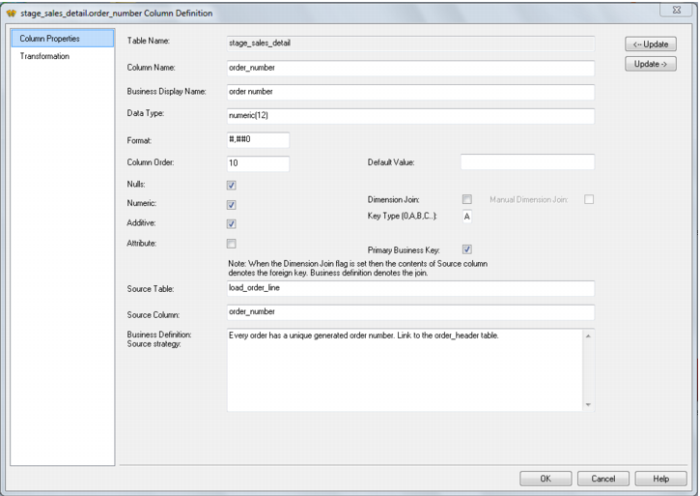
A sample property screen is as follows:
The two special update keys allow you to update the column and step either forward or backward to the next column's properties. ALT-Left Arrow and ALT-Right Arrow can also be used instead of the two special update keys.