Indexes
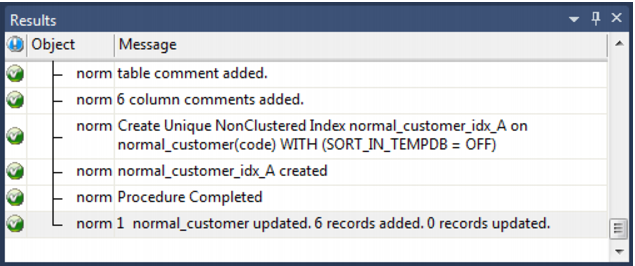
By default a number of indexes will be created to support each normalized table. These indexes will be added once the procedure has been built. An example of the type of indexes created is as follows:
Additional indexes can be added, or these indexes changed. See the chapter on indexes for further details.
Normalized Table Artificial Keys
By default, normalized tables in QAD Data Warehouse Designer do not have an artificial (surrogate) key. Artificial keys can be added manually. The quickest way to do this is to add an extra column to the normalized table by using either Add Column or Copy Column. Edit the properties of the new column to have the correct name and order, source table and column, datatype, key type and flags. Specifically:
The column name and source column name should be the same.
The source table should be empty.
The datatype should be:
DB2: integer generated by default as identity (start with 1, increment by 1)
Oracle: integer
SQL Server: integer identity(0,1)
The key type should be 0.
Only the numeric and artificial key flags should be set on.
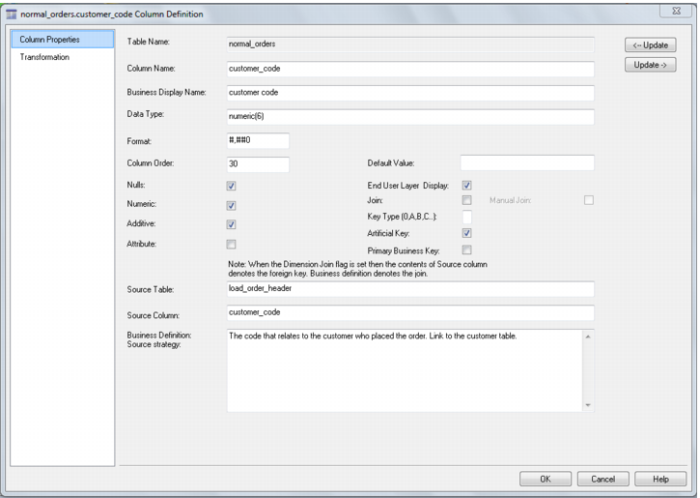
The following example shows a manually added artificial key column:
The artificial key for a normalized table is set via a sequence in Oracle and an identity column in SQL Server and DB2. This artificial key normally, and by default, starts at one and progresses as far as is required.
A QAD standard for the creation of special rows in the normalized tables is as follows:
Key value | Usage |
1 upwards | The standard artificial keys are numbered from 1 upwards, with a new number assigned for each distinct normalized table record. |
0 | Used as a join to the normalized table when no valid join existed. It is the convention in the QAD generated code that any normalized table business key that either does not exist or does not match is assigned to key 0. |
-1 through -9 | Used for special cases. The most common being where a normalized table is not appropriate for the record. A new key is used rather than 0 as we want to distinguish between records that are invalid and not appropriate. |
-10 backward | Pseudo records. In many cases we have to deal with different granularities in our data. For example we may have a table that contains actual sales at a product SKU level and budget information at a product group level. The product table only contains SKU based information. To be able to map the budget records to the same table, we need to create these pseudo keys that relate to product groups. The values -10 and backwards are normally used for such keys. |
Normalized Table Column Properties
Each normalized table column has a set of associated properties. The definition of each property is described below:
If the Column name or Data type is changed for a column then the metadata will differ from the table as recorded in the database. Use the Tools/Validate table create status menu option or the right mouse menu to compare the metadata to the table in the database. A right mouse menu option of 'Alter table' is available when positioned on the table name after the validate has completed. This option will alter the database table to match the metadata definition.
 TIP
TIP: If a database table's definition is changed in the metadata then the table will need to be altered in the database. Use the Tools/Validate table create status to compare metadata definitions to physical database tables. The option also provides the ability to alter the database table, through a pop-up menu option from the validated table name.
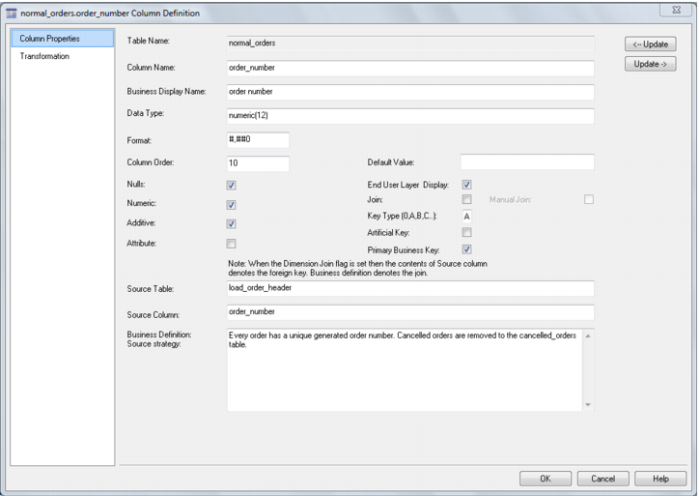
A sample property screen is as follows:
The two special update keys allow you to update the column and step either forward or backward to the next column's properties. ALT-Left Arrow and ALT-Right Arrow can also be used instead of the two special update keys.