Views
Views are normally created from dimensions. These views are then used to define dimensions in a fact table where the dimension appears multiple times. A classic example is that of the date dimension. In our tutorials we create a fact table that has two date dimensions. An order date and a ship date dimension. To facilitate the creation of the fact table we create two dimension views to allow the date dimension to be joined to the fact table twice.
Views can also be created from any other table type. By default views are visualized as part of the dimension object group. If fact table views or other views are being used then views can be visualized as a separate object type by checking the appropriate box under the Tools/Options menu item.
Creating a Dimension View
A dimension view is a database view of a dimension table. It may be a full or partial view. It is typically used in such cases as date dimensions where multiple date dimensions exist for one fact table.
In many data warehouses dimension views are built as part of the end user layer, but creating them in the data warehouse means they are available regardless of the end user tools used.
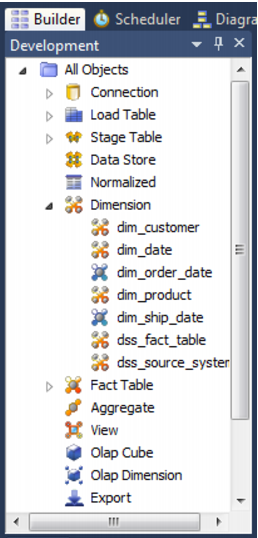
Views can be visualized in QAD Data Warehouse Designer either as part of the Dimension object group or in a separate object group called View. The default is to view dimensions and dimension views together:
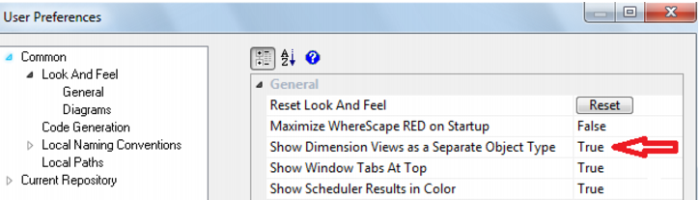
This visualization option is set from the Tools/User Preferences menu item:
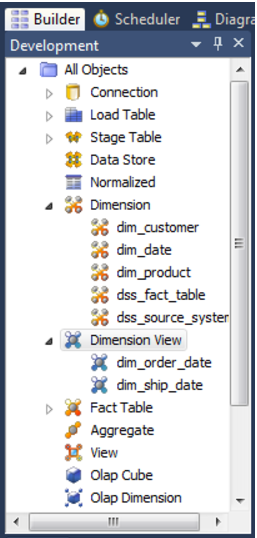
This example shows dimensions and dimension views separately:
The process for creating a view is as follows:
1 Double click on Dimension (or View) in the left pane.
2 Browse to the data warehouse in the right pane.
3 Drag a table from the right pane into the middle pane.
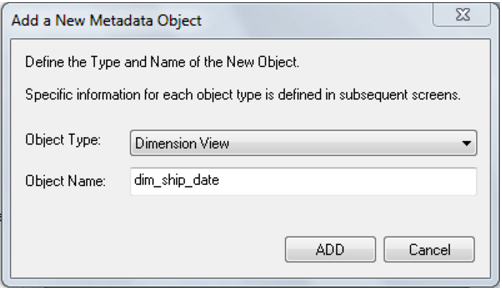
The dialog box defaults the object type to a dimension view
Change the view name as required, and click Add.
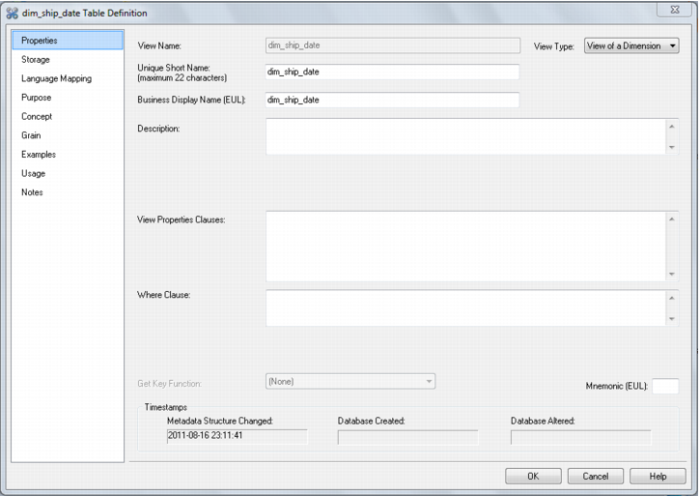
4 The view property defaults dialog will appear. A 'Where' clause could be entered, but this can be done later. Normally we would just click OK.
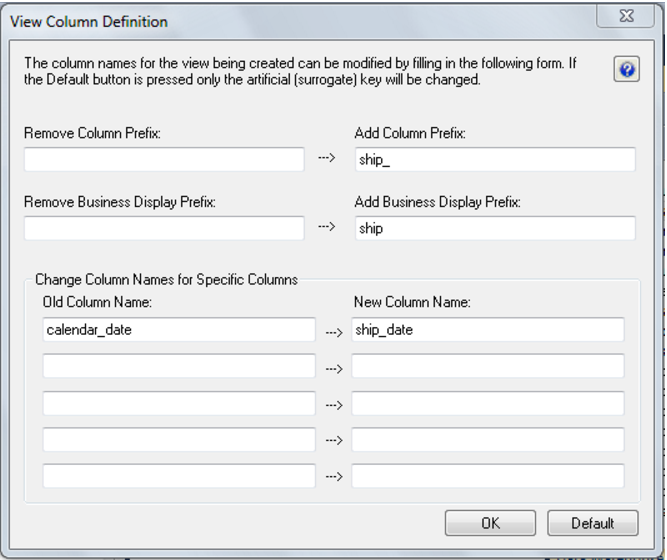
5 A dialog box displays to provide a means of re-mapping some of the column names in the view if required. A description of the fields in this dialog are provided in the section that follows.
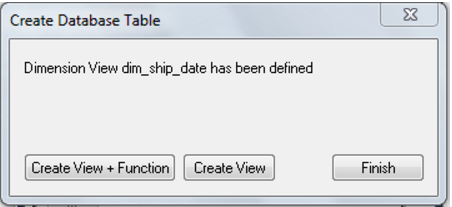
6 A dialog box indicates that the view has been defined. If this is a dimension view then you will be given an option to create both the view and an associated Get Key function.
For any other view type a Get Key function is not created.
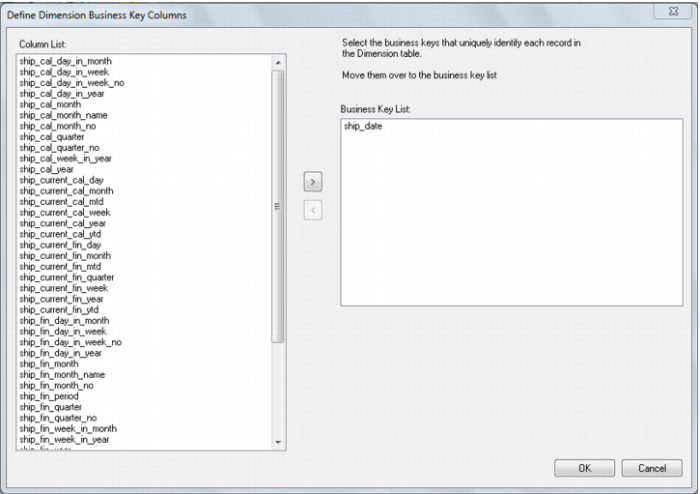
7 If a dimension view and the function create button is clicked then a dialog box will appear to allow the selection of a business (natural) key for the dimension view.
View Column Re-mapping
The view column definition dialog allows for the automated re-mapping of certain column names. It provides an easy method for changing the column names for a large number of columns when creating a view. The various actions undertaken as a result of entries in this dialog can all be done or reversed manually by changing the individual column properties. The various fields are described below: