Building a New OLAP Cube
To create an OLAP Cube proceed as follows:
1 Double click on the OLAP Cube object group to make the middle pane a cube drop target.
2 Select the data warehouse connection to browse in the source pane. The connection can be selected by right clicking the Data Warehouse connection in the Object pane and choosing Browse Source System.
3 Drag a fact table from the source pane into the target pane.
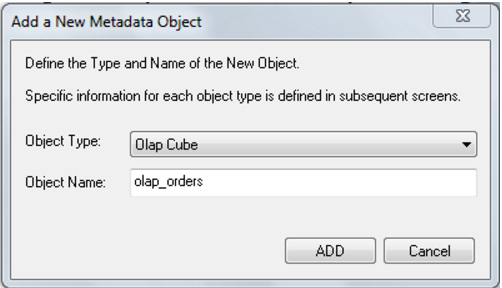
4 Set the cube name in the 'Create new metadata Object' dialog box and click Add.
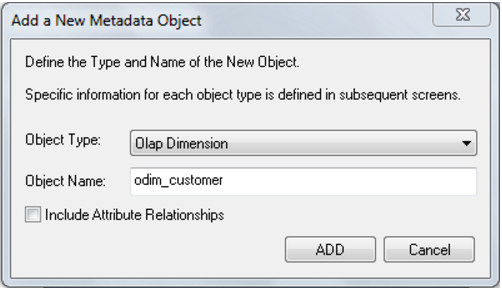
5 A dialog box will prompt for any OLAP Dimensions that do not already exist that are required for this cube (based on the fact table metadata). Set the dimension name in the "Add a new metadata Object" dialog box and click Add.
Note: If you wish to include Attribute Relationships in Analysis Services for this dimension, click on the Include Attribute relationships check box.
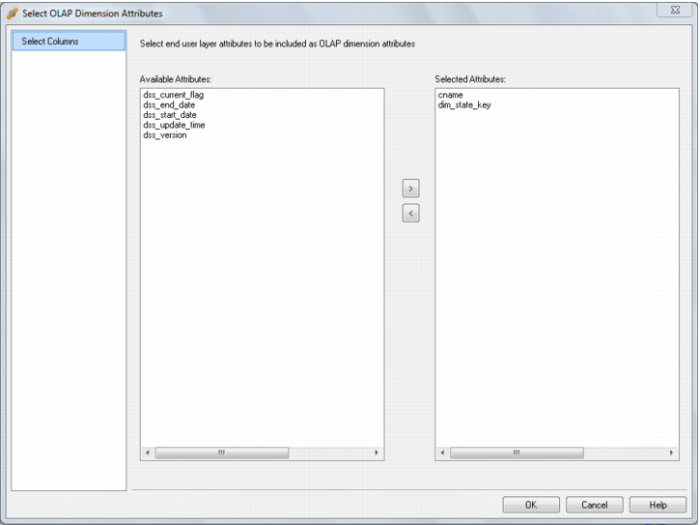
The following dialog appears, prompting you to select the attributes to be included in the Customer OLAP dimension.
The attributes available for selection are in the left hand column. To select an attribute, click on the attribute in the left hand column and choose >. This will move the attribute to the right hand column.
To de-select an attribute, click on the attribute in the right hand column and choose <. This will move the attribute to the left hand column.
Repeat Step 5 for each dimension as required.
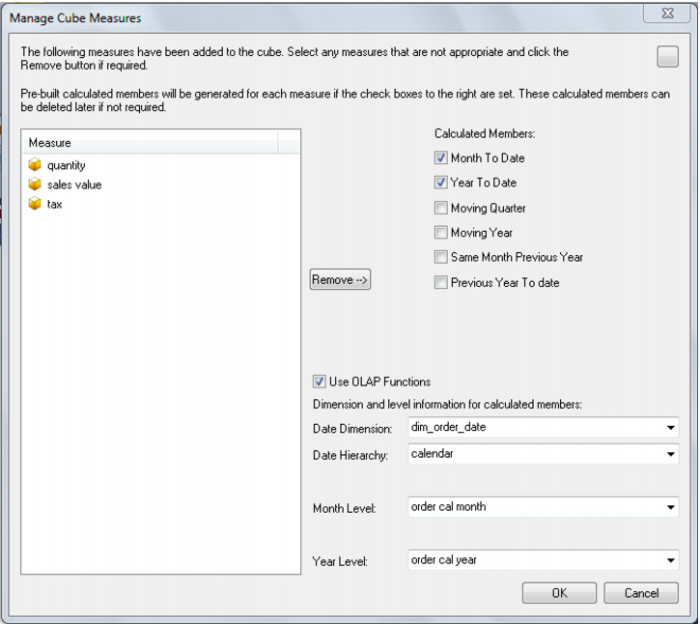
6 A dialog will appear with a list of the fields that are to be added as measures. Remove any columns that are not measures. A measure is a column that uses the sum, count, min or max of the column. Calculations can be chosen if required at this point. A date dimension must be present along with a hierarchy to allow the definition of these calculated members.
7 During cube creation the "Adding Cube Measures" dialog is shown. In this dialog the following options are provided:
Measure, provides a list of measures that can be aggregated (e.g. using Sum, Count, Min, Max or Distinct Count). By default QAD Data Warehouse Designer will show all attributes in the fact table that are defined as numeric and additive. Those attributes that should not be considered measures can be removed using the Remove button.
Calculated Member options will allow the user to add some predefined date based calculated member definitions to be built against the cube. The standard calculations:
Month to date
Year to date
Moving Quarter
Moving Year
Same Month Previous Year
Previous Year to date
These will define a calculated measure based on the associated drop down boxes. There are 2 different ways that QAD Data Warehouse Designer will implement these calculations which is dictated by the Use OLAP functions check box:
Using OLAP Functions - will implement the calculations using MDX Expressions within the cube using date based MDX functions. These calculations are efficiently executed by Analysis Services.
Without using OLAP functions - will implement the calculations using an MDX Filter function built over date dimension attributes. This option leverages the flags from the relational date dimension and ensures that a query using the calculations in the Cube will match an equivalent query against the star schema and is particularly useful if non-standard date periods are used.
8 The cube and dimensions will be created in QAD Data Warehouse Designer metadata and the cube measures will be displayed.