Measure Group Dimensions
1 Display the relationship of OLAP Dimensions to Measure Groups defined against the cube by selecting the right mouse menu option 'Display Measure Group Dimensions' when positioned on the cube name.
2 The properties of the relationship of the OLAP Dimension to Measure Group that are customisable can be changed by using the right mouse menu item "Properties" when positioned on the OLAP Dimension name.
Creating an OLAP Cube on the Analysis Services Server
If all of the tasks above are completed then it should be possible to now create the cube on the Analysis Services server. When positioned on the OLAP Cube name use the right mouse menu and select the Create Cube option. QAD Data Warehouse Designer will check that key components of the cube are correct before it proceeds to issue the create command.
The create cube menu option will perform the following tasks on the Analysis Services server:
Create an Analysis Services database if the name specified is not already present.
Create a Data Source with connection information back to the data warehouse based on the cube source information in the Data Warehouse connection.
Create a Data Source View to support the cube objects defined
Create the dimensions used by the cube as database shared dimensions if they do not already exist.
Create the cube if it does not exist
Create a partition for the cube.
OLAP Cube Objects
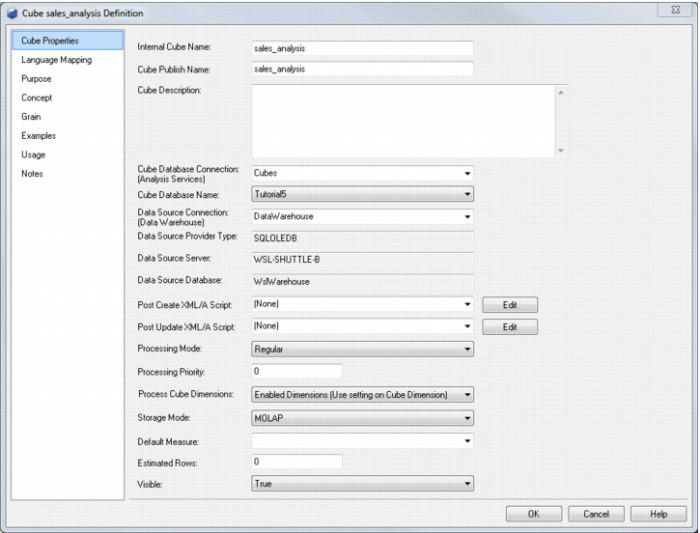
OLAP Cube Properties
The properties associated with a cube are described below. These properties relate both to the cube environment and the cube itself. There are seven tabs in the cube properties screen. The first is the main properties, the second the processing and partitioning options and the rest are for documentation stored in the QAD Data Warehouse Designer metadata and displayed in the generated QAD Data Warehouse Designer documentation. In order to see the cube properties use the right mouse menu item Properties when over the cube name.