To Delete a User Defined Hierarchy Level
Display the User Defined Hierarchy Levels in the middle pane, select the User Defined Hierarchy Level to delete, right-click and select Delete.
Changing OLAP Cubes
An understanding of the dependency of objects within Analysis Services is the key to figuring out what needs to be dropped or recreated in a cube database using QAD Data Warehouse Designer.
Changes to the underlying relational star schema can cause cube processing to fail as the star schema is frozen in the Data Source View (DSV) of the cube database. Minor changes such as the addition of table columns, or altered data types (e.g. changing a char to varchar) will not break the cube, but renaming a source table or column that is used as a source to the cube will invalidate the DSV and cause processing to fail.
The solution to this issue is to drop and recreate the Cube database from Data Warehouse Designer to recreate the DSV or manually update the DSV using Microsoft BIDS.
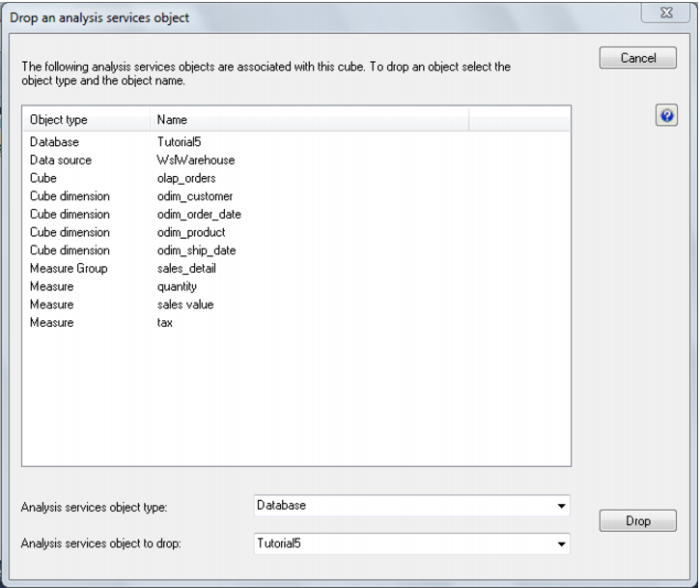
If an object needs to be dropped and recreated in Data Warehouse Designer then these are two separate actions. For example to drop the OLAP database, right click an OLAP cube within that database in Data Warehouse Designer and choose Drop Analysis Services Object, then either double click on an object in the list or use the drop down boxes in the Drop Analysis Services Object dialog to choose the object to drop, and click Drop. This will drop the object from Analysis Services.
A Create action on an Analysis Services object in Data Warehouse Designer will be different depending on whether or not the object already exists in Analysis Services:
If the object does not already exist in Analysis Services then Data Warehouse Designer will create the object (and any related objects e.g. OLAP database and DSV).
If the object does already exist in Analysis Services then Data Warehouse Designer will try to detect any changes or additional features that need to be added to the object and add or alter the existing Analysis Services object.
Some objects need to be dropped and recreated in order to be changed (eg dimension structures), and some only need to be recreated (eg calculations).
Changes to cube runtime objects do not require the cube database to be dropped. For example a new or changed definition of a calculation or KPI will not require the cube to be dropped and recreated (so data is retained). By Recreating the cube the definition of these runtime objects will be updated and available immediately to cube users.
A brief summary of the hierarchy of objects and the remedial action is shown below:
Cube Object | Change | Action |
Data Source | This changes the source database connection. It is defined in the Data Warehouse connection in Data Warehouse Designer. | OLAP database needs to be dropped and recreated. |
Data Source View (underlying relational star) | The DSV reflects the design of the relational star. So the DSV would need to be updated if any changes are made to tables or views that are used to build OLAP objects. | Changes to the underlying relational star that affect an existing OLAP Object requires that the OLAP Database is dropped and recreated to regenerate the DSV. |
OLAP Dimension | The addition or deletion of attributes or hierarchies to an existing OLAP dimension. | The OLAP dimension plus any OLAP cubes associated with the dimension need to be dropped and recreated. |
OLAP Cube Measure Group | Delete or Add a Measure Group based on a fact that already exists in the DSV. | Recreate the cube in Data Warehouse Designer and reprocess. |
OLAP Cube Measure Group | Add a Measure Group based on a fact that does not exist in the DSV. | Recreate the OLAP cube database and reprocess. |
OLAP Cube Measures | Delete or Add measures based on columns that already exist in the DSV. | Recreate the cube in Data Warehouse Designer and reprocess. |
OLAP Cube Measures | Add measures that are based on new columns that do not exist in the DSV. | Recreate the OLAP cube database and reprocess. |
OLAP Cube Calculations, KPIs, Actions | Add, change or delete definition on the cube. | Recreate the cube in Data Warehouse Designer (a reprocess is not necessary because just the calculation definition is stored in the cube - the result is calculated at query time). |
Retrofitting an OLAP Object
QAD Data Warehouse Designer provides the functionality for retrofitting OLAP cubes from Analysis Services.
Note: Before you can retrofit an OLAP cube, you must first retrofit any and all of the OLAP dimensions used by the OLAP cube.
The process to retrofit an OLAP dimension is as follows:
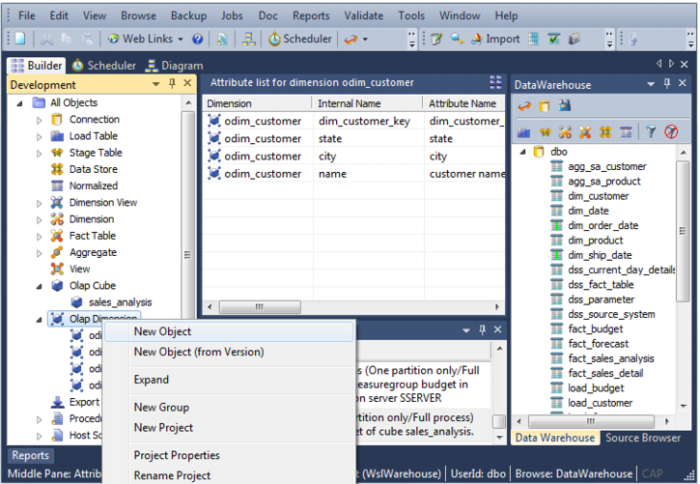
1 Right click on the ‘OLAP Dimension’ object heading in the left pane and choose
New Object.
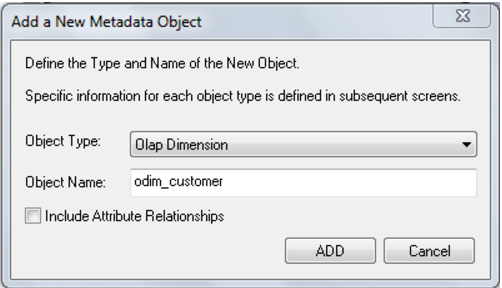
2 Enter any name for the object name and select Add.
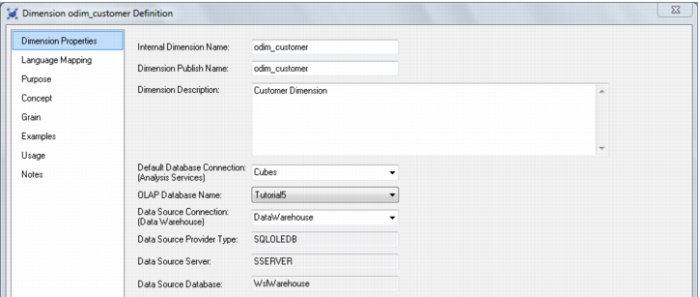
3 On the Properties dialog:
For the Internal dimension name enter the name that matches exactly the name of the OLAP Dimension in Analysis Services that you want to retrofit.
For the Dimension publish name enter a name for the dimension.
For the
Dimension description enter a description for the dimension.
For the
Default database connection select the required Analysis Services connection.
For the
OLAP database name select the database name in Analysis Services.
For the
Data source connection select the relevant data source connection.
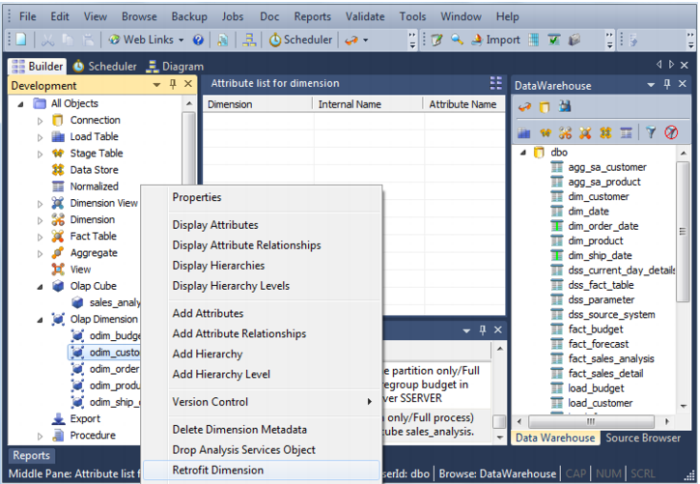
4 The OLAP Dimension can now be retrofitted by right-clicking the object in the left pane and choosing ‘Retrofit Dimension’.
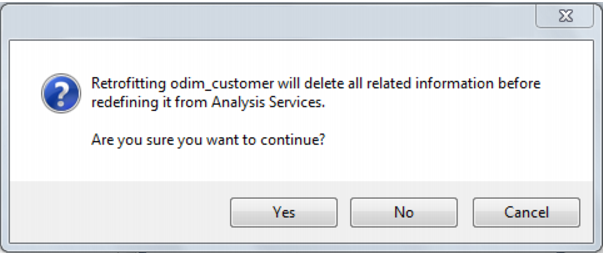
5 Two warning dialogs now appear. The first dialog warns that the existing information will be deleted before being redefined from Analysis Services. Select
Yes.
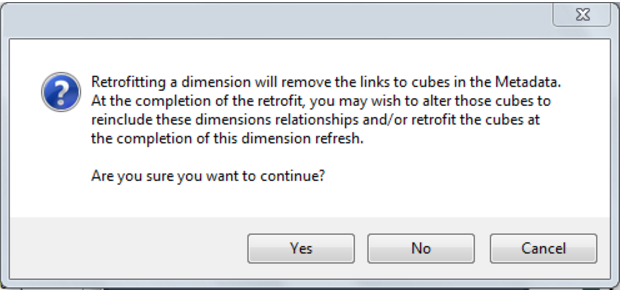
6 The second dialog warns that retrofitting a dimension will remove the links to cubes in the Metadata. Select
Yes.
7 The results of the retrofit are displayed in the results panel at the bottom of the screen. If it was successful the new object should now have all the attributes, hierarchies and hierarchy levels (as well as all of their properties) as set in Analysis Services.
Once all of the dimensions have been retrofitted you can retrofit the OLAP Cube. Follow steps 1-6 above to retrofit the OLAP Cube as for the OLAP dimensions.
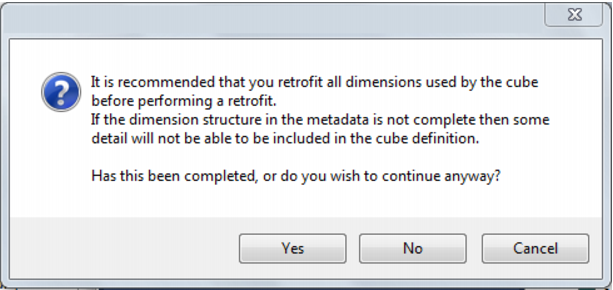
The final dialog is a reminder to only retrofit an OLAP cube once the dimensions used by the cube have been retrofitted. If all relevant dimensions have been retrofitted, select Yes.
Once again, the results of the retrofit are displayed in the results panel at the bottom of the screen.