Exporting Data
Export objects are used in QAD Data Warehouse Designer to produce ascii files from a single database table or view for a downstream feed. Some or all of the columns in a table or view can be exported. There are two ways of performing exports.
File export - an export where most of the processing is managed and controlled by the scheduler
Script-based export - an export where a Windows script file is executed to perform the load.
Building an Export Object
The simplest way to create an export object is to use the drag and drop functionality of QAD Data Warehouse Designer.
1 Browse to the data warehouse connection (Browse/Source Tables).
2 Create a drop target by double clicking on the Export object group in the left pane. The middle pane should have a column heading of 'Export Objects' for the leftmost column.
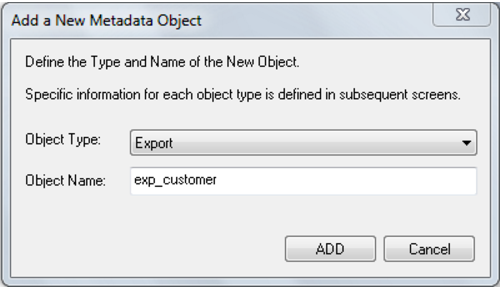
3 Select a table or view in the right pane and drag it into the middle pane. Drop the table or view anywhere in the middle pane. The following dialog appears:
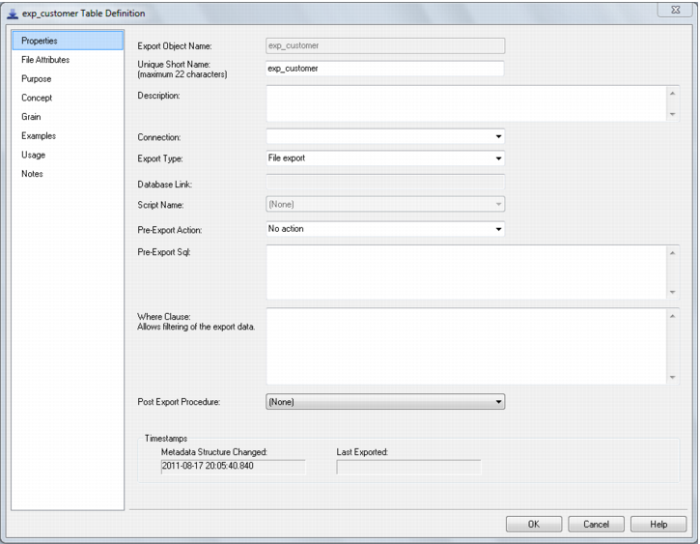
4 If the export object needs to be renamed, do so and then click the Add button. The following dialog appears.
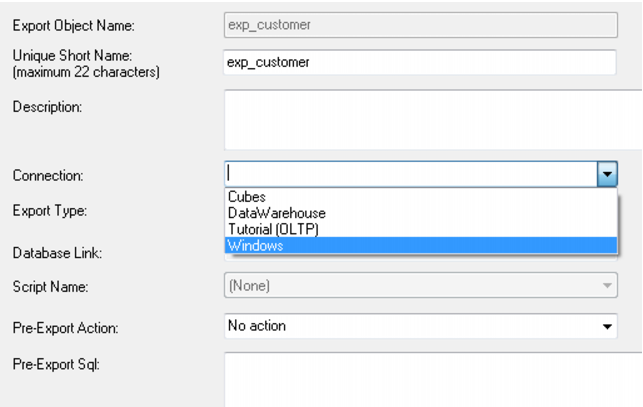
5 Change the Connection to Windows.
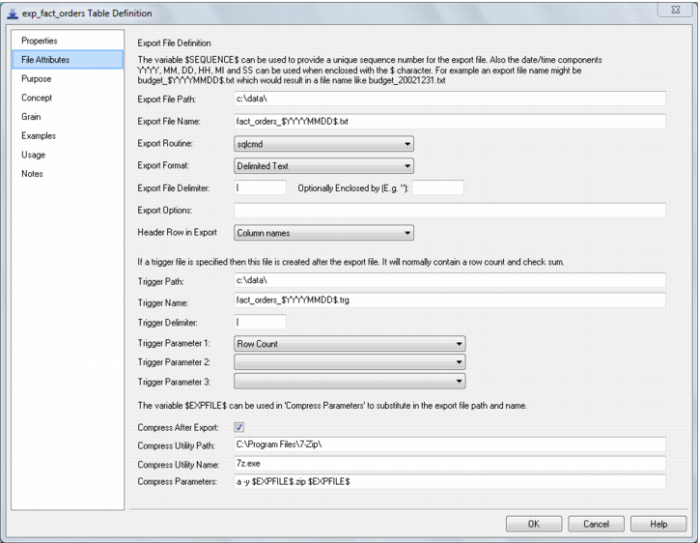
6 Click on the File Attributes tab and fill in the fields as described in the next section.
7 Now run the export by right clicking on it and selecting export.
File Attributes
The following fields are available to define the location, name and contents of the exported data file: