Bottom pane
The bottom pane shows the audit trail of a selected task/job. Audit trail information includes:
|
Column
|
Description
|
|
Task
|
The object name
|
|
Status
|
The status of the message
|
|
Sequence
|
This is a unique number assigned to each job iteration and job. If you enter a new job it will acquire a new sequence number. In normal daily processing when no new jobs have been created sequence numbers will be sequential.
|
|
Timestamp
|
Time of message output
|
|
Message
|
The message
|
|
DB Message
|
Message from database
|
|
Job
|
Job relating to this message
|
Scheduler States
A scheduled job can have the following states:
Hold
Waiting
Blocked
Pending
Running
Failed
Failed - Aborted
Completed
|
State
|
Description
|
|
Hold
|
The job is on hold. It can be edited and its state changed in order to release the job.
|
|
Waiting
|
The job is waiting to start, or waiting for its scheduled time to arrive, or waiting for a scheduler to become available.
|
|
Blocked
|
The job is blocked as a previous instance of the same job is still running. When the currently running instance completes this job will start.
|
|
Pending
|
This is the first stage of a running job. The scheduler has identified the job as ready to start and has allocated a thread, or sub task to process the job. A job is in this state until the thread or sub task begins processing. If a job stays in this state then the scheduler thread has failed for some reason. The logs can be checked on either the UNIX or Windows server on which the scheduler is running.
|
|
Running
|
The job is currently running. Double click on the job name in the right pane to drill down into the specific tasks.
|
|
Failed
|
A failed job is one that had a problem. It can be restarted from the point of failure and is considered to be running unless subsequently aborted.
|
|
Failed - Aborted
|
The job has been aborted after having failed. Once in this state a job cannot be restarted. The job exists then only as a log of what occurred and essentially is now not regarded as a job.
|
|
Completed
|
The job has successfully completed, possibly with warnings. Once in this state a job cannot be restarted. The job exists then only as a log of what occurred and essentially is now not regarded as a job.
|
Note: When a job fails and drilling down does not show any errors against the tasks, right click the job and "View Audit Trail". The job may have failed because of an error in the JOB level.
A scheduled task can have the following states:
Waiting or Blank
Held
Running
Failed
Completed
Error Completion
Bad Return Status
|
State
|
Description
|
|
Held
|
The task has been held due to a prior dependency failure. The problem must be rectified and the job restarted.
|
|
Waiting (Blank)
|
Tasks that are waiting to run either due to a shortage of threads, or prior dependencies normally have a blank status.
|
|
Running
|
The task is currently running.
|
|
Failed
|
The task has had a fatal error. Any dependencies on this task will be held. Double click on the task to see more detail error information or review the audit and error/detail log for the job.
|
|
Completed
|
The task has completed successfully.
|
|
Error Completion
|
The task has completed with a handled Error. Any dependent tasks will be held, and the job must be restarted when the problem is rectified.
|
|
Bad Return Status
|
The task has returned an unknown status. This normally occurs with script files that produce unexpected information. The rule for scripts is that the first line returned must be a status of either 1, -1, -2, or -3. The second line is a message detailing the result. If the first line does not contain one of these four values then this status will be returned and dependent tasks held. Run the script manually to view the output or check the logs.
|
Scheduling a Job
Firstly access the scheduler by clicking the scheduler button

on the toolbar. Select
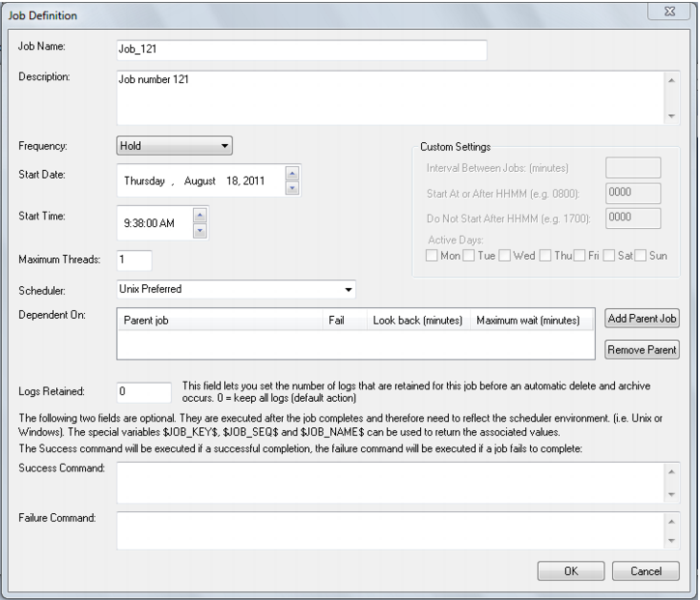
File/New Job from the menu strip at the top of the screen, or click the New Job button on the toolbar. The following screen displays:
Complete the fields and click the OK button. The main fields are described in the following table:
Field | Description |
Job Name | The Scheduler defaults to the next job number in the sequence. You can alter this to any alphanumeric. Note: Only alphanumerics, spaces and the underscore are supported in the name. WARNING: on some UNIX systems long job names can cause jobs to be canceled (see Knowledge Base article 67), so where possible keep the name short. |
Description | A description of the job |
Frequency | When the job runs. The options available in the drop down list box are: Once Only - job is deleted on completion Once and Hold - runs and puts another copy of the job on hold Hold - puts the job on hold for manual release Daily - runs the job daily Custom - enables custom definition Weekly - runs the job weekly Monthly - runs the job monthly Annually - runs the job annually |
Start Date and Start Time | The date and time for the job to start. |
Max Threads | The maximum number of threads allocated to run the job, e.g, if some tasks can run in parallel then if more than one thread is allocated then they will run in parallel. |
Scheduler | Certain types of job will only run in a specific environment. For example ODBC based loads can only be handled by the Windows' scheduler. It is possible to have multiple schedulers running. Select the desired scheduler from this drop down. The valid options are: UNIX Preferred, UNIX Only, Windows Preferred, Windows Only, or the name of a specific scheduler can be entered (e.g. WIN0002) |
Dependent On | A job can be dependent on the successful completion of one or more other jobs. Click the 'Add Parent Job' button to select a job that this job will be dependent on. The maximum time to look back for parent job completion field prevents older iterations of the parent job as being identified as a completion. The maximum time to wait specifies how long to await a successful completion of the parent job. The action if that wait expires can also be set. |
Logs Retained | Specify the number of logs to retain for the job. By default all logs are retained. This field can be used to reduce the build up of scheduler logs by specifying a number of logs to retain. |
OK command and Failure command | These are either UNIX or Windows shell commands depending on which scheduler is used. They are executed if the condition is met. Typically, these commands would mail or page on success or failure. |
The following fields are available if a frequency of Custom is chosen:
Field | Description |
Interval between jobs (Minutes) | Specify the number of minutes between iterations of the job. For example to run a job every 30 minutes set this value to 30. If a job is to run only once but on selected days set this value to 1440 (daily) |
Start at or after HHMM | The time that the job may run from. To run anytime set to 0000. |
Do not start after HHMM | If multiple iterations are being done then this is the time after which a new iteration will not be started. For example if a job is running every 10 minutes it will continue until this time is reached. To run till the end of day set to 2400. |
Active on the days | Select each day of the week that the custom job is to be active on. |
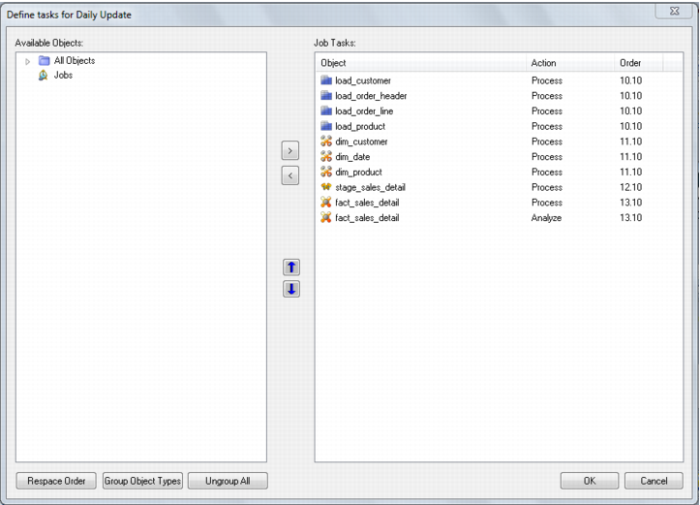
A job has tasks, and those tasks can have specific actions that are to be performed on an object. The Define Tasks window is shown below:
The screen has two main areas. The right pane shows the tasks to be run for this job and the left pane lists all the objects.