To edit a job
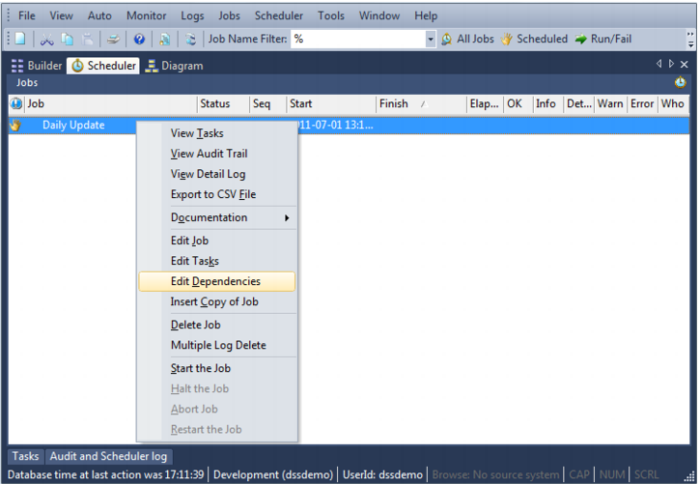
1 Select the job from the scheduler middle pane. Right click on the job to view the editing options, as shown below:
2 Select an option from the drop down list as shown.
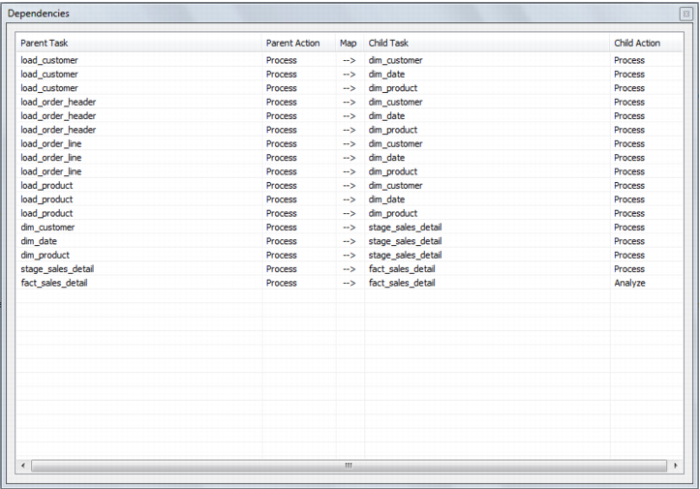
When you select Edit Dependencies the following screen displays showing currently defined dependencies.
Complex network dependencies can be built. A right mouse menu allows dependencies to be added, deleted or modified. As a change is made QAD Data Warehouse Designer attempts to ascertain if a circular or non functional structure has occurred.
Deleting Job Logs
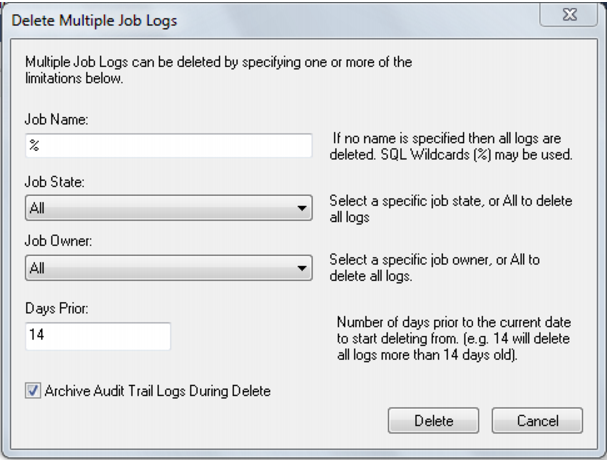
Job logs can be deleted by displaying them in the right pane and then selecting a log or a group of logs and using the delete key. Multiple job logs can be deleted by choosing the 'multiple log delete' right mouse menu option when positioned over a job log. The following dialog will be displayed.
Select or enter the appropriate options to delete the range of job logs required.
Monitoring the Database and Jobs
Note: Oracle on UNIX and Linux only.
QAD Data Warehouse Designer provides a methodology for monitoring both the database and selected jobs. In the event that a job fails or the database is not available a notification message can be sent to an administrator. The monitoring process requires the establishment of an external process. This process must run on a UNIX platform. It does not have to run on the data warehouse database platform, and in fact it is often preferable that it runs on a separate system. The monitor requires network access to the database. Refer to the Setup/Administrator guide for information on how to establish the external monitor process. This external monitor process must be running in order to utilize the features discussed in the following sections.
The following sections cover both database monitoring and job monitoring. The normal practice would be to setup database monitoring to cover those times when critical jobs are running. The individual monitoring of critical jobs is then defined.
Note: Although it is possible to setup job monitoring without database monitoring this is not recommended. If database monitoring is not in place and the database fails, then no job monitoring will occur and no notifications regarding the jobs will be issued. Therefore, database monitoring is required to provide a comprehensive job monitoring regime.
Database Monitoring
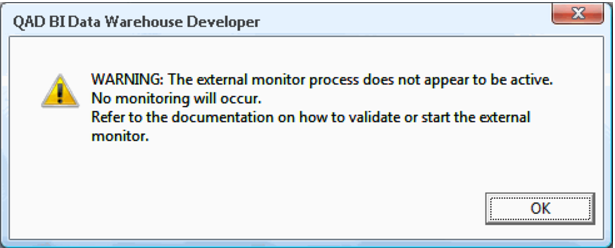
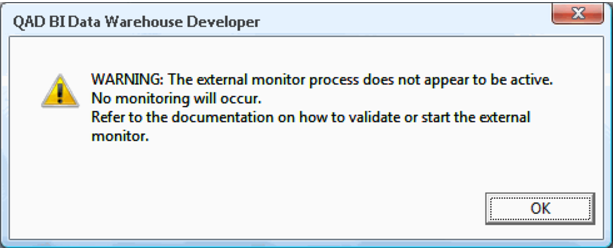
Database monitoring is defined by selecting the Monitor/Database monitoring menu option from the scheduler window, or from the stand-alone scheduler maintenance program. When this menu option is selected a check is made to ensure that the external monitor process is active. If the external process has not reported in the last 24 hours the following dialog will appear:
In such a case the external monitoring process on the UNIX platform needs to be checked or started. Refer to the Setup/Administrator guide for instructions on how to maintain the external monitoring process.
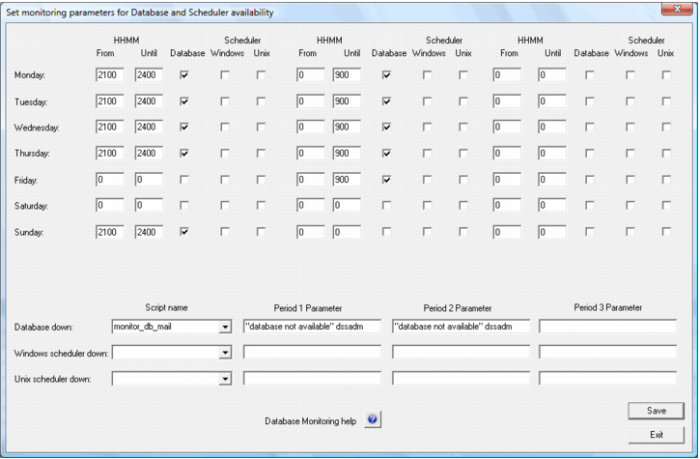
The following example dialog will then appear:
In this example the database is being monitored between the hours of 9:00pm and 9:00am to cover processing for business days monday through friday. If the database is not available during these times the host script called 'monitor_db_mail' will be called and it will be passed two positional parameters. The first parameter being "database not available" and the second being "dssadm". The parameters required are specific to the script being invoked.
In this example we have defined two monitoring periods. The first is for 9:00pm until midnight and the second is from midnight to 9:00am. As a result there are two sets of parameters defined for a database notification, one for the first period and one for the second period. In this case both are the same.
Job Monitoring
The external monitoring process regularly monitors jobs running in the scheduler and provides notifications when certain conditions occur. By default the interval between the monitoring of jobs is 15 minutes. This interval can be overridden during the setup of the external job monitor. See the Setup/Administration guide.
Job monitoring is defined by selecting the Monitor/Job monitoring menu option from the scheduler window, or from the stand-alone scheduler maintenance program. When this menu option is selected a check is made to ensure that the external monitor process is active. If the external process has not reported in the last 24 hours the following dialog will appear:
In such a case the external monitoring process on the UNIX platform needs to be checked or started. Refer to the Setup/Administrator guide for instructions on how to maintain the external monitoring process.
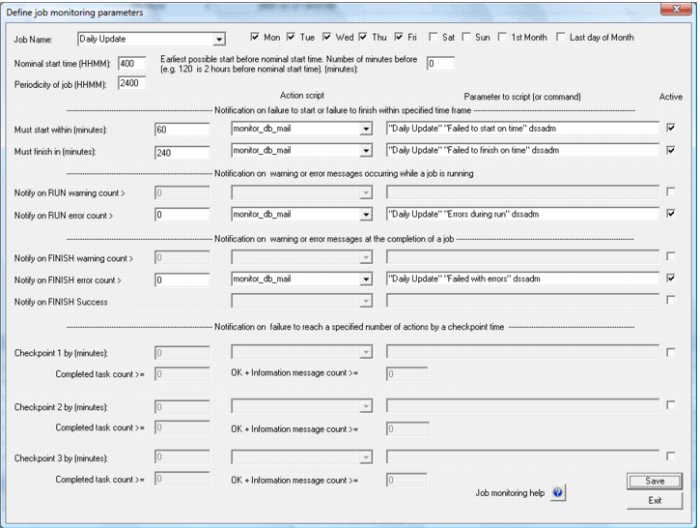
The following example dialog will then appear:
In this example the job called 'Sales Daily' is being monitored. The days Monday through Friday are checked, so monitoring will occur on these days. The nominal start time is 04:00am. Notifications will occur if the following conditions occur.
1 The job fails to start within 60 minutes of this nominal start time.
2 The job fails to finish within 240 minutes (4 hours) of the nominal start time.
3 Errors occur while the job is running
4 The job fails with errors.
In all conditions that could cause a notification we will invoke the host script 'monitor_job_mail'. This script requires three parameters. The first parameter is the job name, the second a message, and the third the user or users to mail.