Example
The following example connects to a SQL Server repository called WslWarehouse, using a trusted connection into the C:\Temp\my_doco directory with 4 hops in diagrams:
med /BD /C "WslWarehouse" /D "C:\Temp\my_doco" /S "4"
Reading the Documentation
To read the documentation you have created, select Doc from the builder menu bar, then Display Documentation. This will launch a browser and display the contents of index.html. Alternatively you can access the HTML pages directly from their saved location.
Diagrams
Six types of diagrams are provided to give visual representation of what has been created. These are
The star schema diagram
The source tracking diagram
The track back with data joins diagram
The track forward diagram
The linked tables diagram
The job dependencies diagram
These diagrams are accessed through the diagrammatic pane which is activated when the switch to diagrammatic view button is clicked.
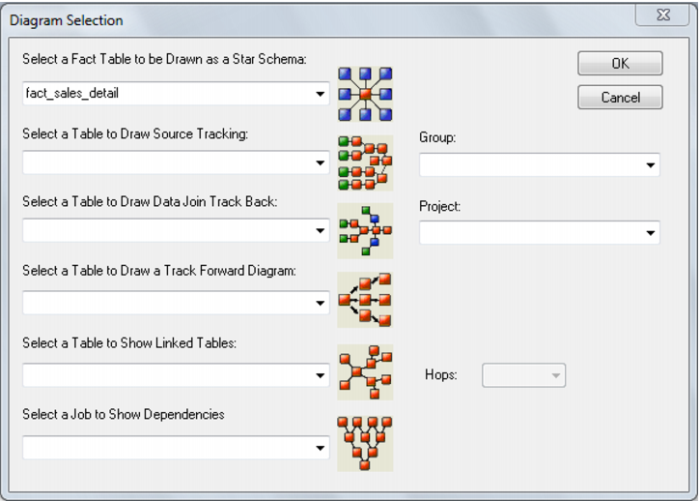
With the diagrammatic pane displayed clicking this button again or using the right mouse in the main window will cause the following dialog box to appear:
A different drop down box is provided for each diagram type. You may choose to limit a diagram to only include objects within a group or project. Choosing a Group and/or project will also reduce the tables in the drop down lists for each diagram type.
To create a new diagram:
1 Optionally choose the Group to limit the diagram by
2 Optionally choose the Project to limit the diagram by
3 Choose the table name from the drop down list for the required diagram
4 Click OK.
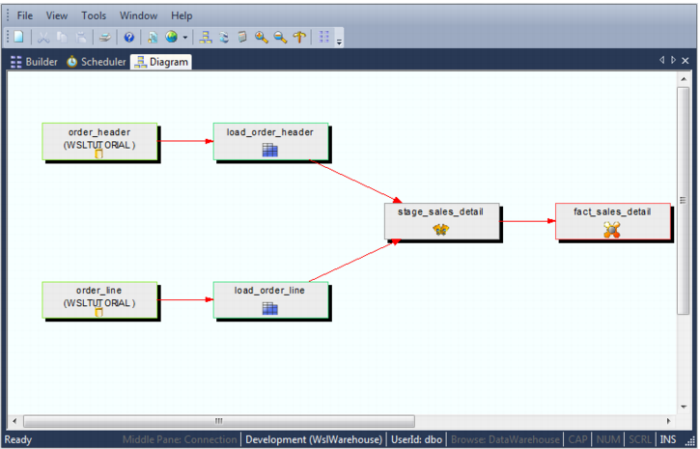
Once displayed there are two modes for diagram display. The default mode is that of a series of linked dialog boxes, which can be expanded to view the column name contents. The second mode is the printable mode. Switch to the printable view by selecting the menu option Printable Diagram/Standard Diagram (toggle) which is located in the File menu, or pressing the toggle button as shown below:
The diagram display in the printable view can be altered, saved and restored; and printed. See the section on printable diagrams for further details.
Once a diagram has been displayed, it can be refreshed by choosing Refresh Diagram from the Tools menu, or by pressing F5.