How QAD increases productivity
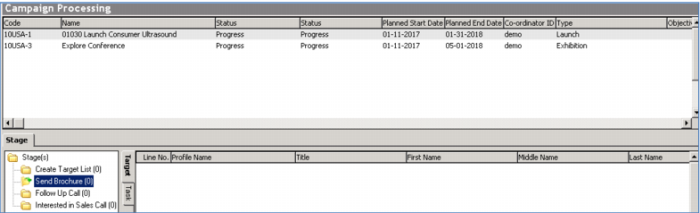
Campaign Processing
You track activities and results by each stage of a campaign, including complete details of who was involved, what was done and the outcome.
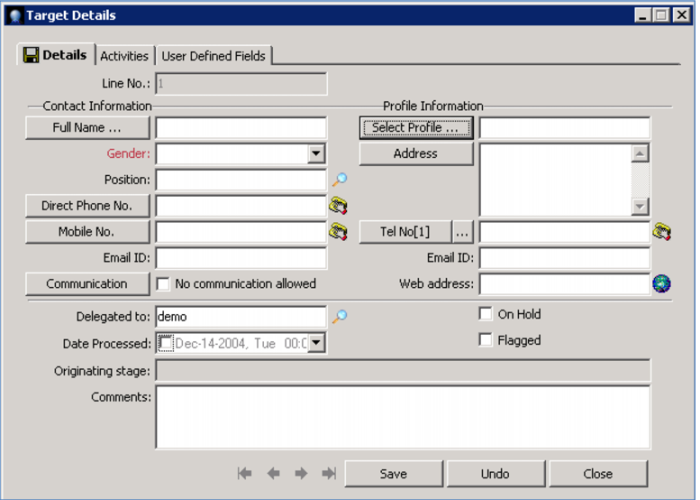
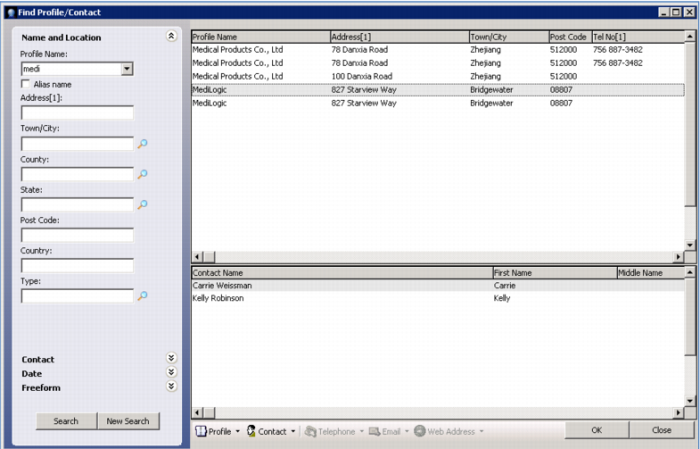
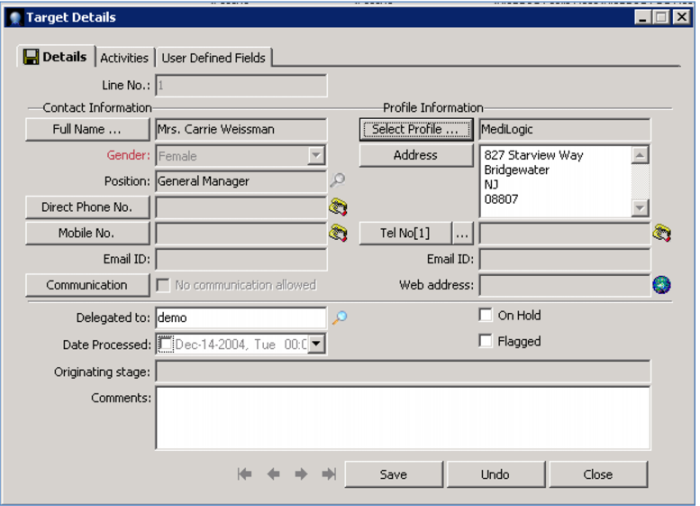
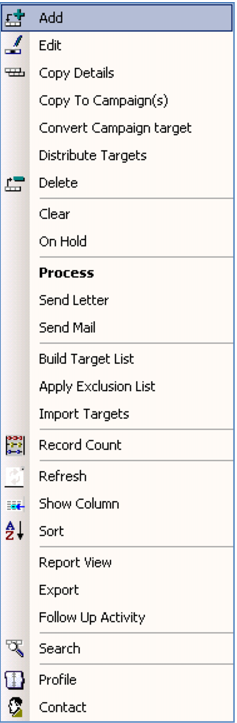
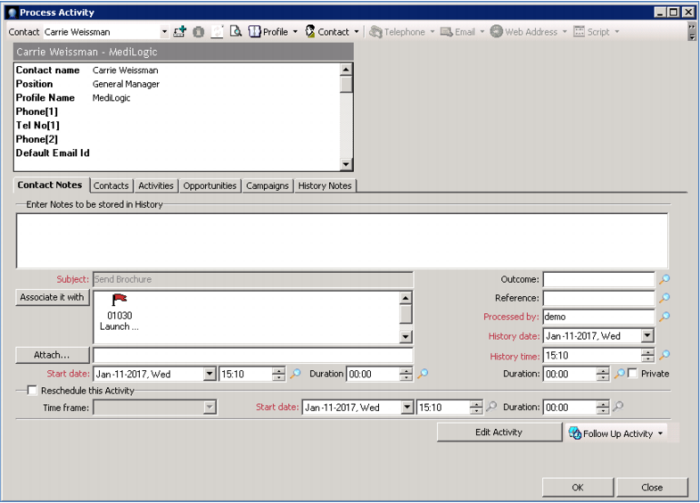
You add targets to the campaign – typically automatically loading them based on selection criteria or taking them from a list. Once added to a campaign, you can process campaign activity against each target. This helps you track any details – who, when, duration, notes – and associate follow up activities and opportunities.
This ensures that leads generated by a marketing campaign do not get stale or overlooked by the sales force… specific follow ups are generated and monitored – ensuring you aren’t wasting precious marketing funds.
You will track opportunities and can translate them into Quotes and Orders – pegged to the originating Campaign. This not only gives you total visibility into the pipeline, it also provides quantitative results of every campaign, with complete ROI details. You can identify the campaigns that are working and easily replicate those.
Demo
Key Points
• Activities & results by Stage
• Complete details
• Associated follow up activities ensure sales leads aren’t overlooked
• Marketing funds not wasted
• Opportunities from Campaigns tied to resulting Quotes / Orders
• Pipeline visibility
• ROI by Campaign
• Easily replicate successful campaigns