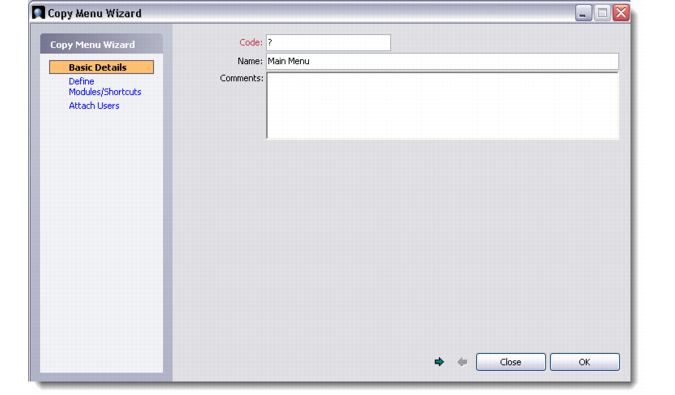
Copy Menu Wizard
Use the Copy Menu Wizard to copy an existing menu to use as the basis for the new menu.
To access the Copy Menu Wizard, right-click an existing menu in the Menu Manager browser and choose Copy.
Note: The Wizard copies a menu but not the users attached to the menu.
Copy Menu Wizard
Creating a menu using the Copy Menu Wizard consists of the same three steps as creating a menu manually:
1 Specify basic details of the menu (Basic Details page). This step is mandatory.
2 Define modules and shortcuts by using the arrows to move the items from the Available Modules/Shortcuts list into the Selected Modules/Shortcuts list (Define Modules/Shortcuts page). You can also use the drag-and-drop option to select a module or a shortcut. This step is optional.
Note: Make sure you arrange the menu items in the order you want before saving the menu.
3 Attach users and/or permission groups to the new menu (Attach Users page). This step is optional.