Setting Up Contact Integration
The contact synchronization options that are available depend on the options you select while enabling contact integration.
To set up contact details synchronization from the system:
1 Choose Main Menu|Settings|Mail Server Integration|Settings and Switches.
2 Click the Contacts tab.
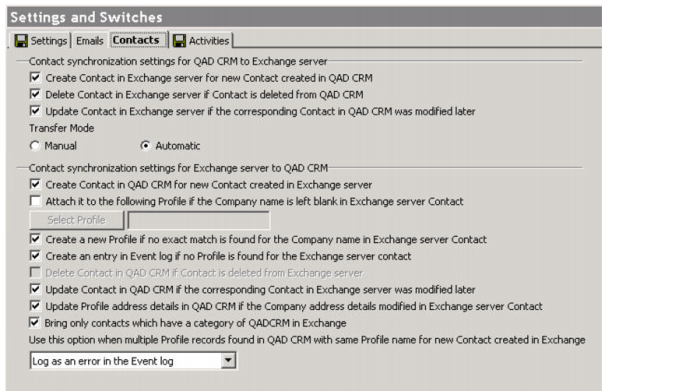
Settings and Switches - Contacts Tab
3 To enable contact synchronization from the system to Microsoft Exchange Server, select the required options in this area:
Contact Synchronization settings for QAD CRM to Exchange Server
Available options are:
• Create Contact in Exchange Server for new Contact created in QAD CRM.
• Delete Contact in Exchange Server if Contact is deleted from QAD CRM.
• Update Contact in Exchange Server if the corresponding Contact in QAD CRM was modified later.
• Transfer Mode. You can select either Manual or Automatic. For more information about how to synchronize contacts, see the section “Synchronizing Contacts” in QAD CRM User Guide.
4 To enable contact synchronization from Exchange Server to the system, select the required options in this area:
Contact Synchronization settings for Exchange Server to QAD CRM
The available options are:
• Create Contact in QAD CRM for new Contact created in Exchange Server.
• Attach it to the following profile if the company name is left blank in the Exchange Server Contact. If you select this option, you must enter the profile ID in the input box below this option. During contact synchronization, this profile is attached to the contacts in Exchange Server that have no company reference.
• Create a new profile if no exact matchis found for the company name in Exchange Server Contact.
• Create an entry in event log if no profile is found for the Exchange Server Contact.
• Update Contact in QAD CRM if the corresponding Contact in Exchange Server was modified later.
• Update Profile address details in QAD CRM if the Company address details were modified in Exchange Server Contact.
• Bring Only Contacts which have a category of QADCRM in Exchange. It is recommended that you enable this, so that only Exchange Contacts intended for integration with CRM (and thus tagged with the QADCRM category) are brought to CRM.
• Use this option when multiple Profile records are found in QAD CRM with same Profile name for new Contact created in Exchange. You can select either Log as an Error in the Event log or Attach Contact to the Customer Profile.
5 Click Save.