Setting Up Teams
Teams are associated with a business unit. Team members typically share job or role responsibilities. Users can belong to as many teams as required for business requirements. Team affiliation determines the business unit data that a user can access.
Teams can themselves contain teams. For example, a Sales team might consist of two teams, such as Northern Region Sales and Southern Region Sales. Typically a user who is a member of one team cannot view data—such as sales data—for a user associated with a different team.
If required, teams can be configured to allow data to be shared with other teams by creating a team hierarchy. Data sharing operates in a top-down mode: teams higher in a team hierarchy can view the data of members in lower teams, but not vice versa. Teams that are on the same level can share data.
Note: If you do not want to implement team-level security for Opportunities and Activities, you must set up a default team and attach all users to this team.
For more information about teams and security, see
System Security.
Teams
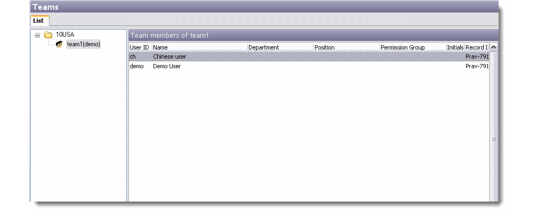
The Teams window has two areas. The left-hand pane lists the name of the business unit and the teams that are currently attached to that unit. Teams are arranged in a hierarchy. The right-hand pane lists the members in the selected team.
To create a team:
1 Choose Main Menu|Settings|Organization|Teams. The Teams window displays.
2 Right-click the business unit to create a team under the unit. Or right-click an existing team to create a subteam within that team.
Note: The right-click menu also contains options for editing and deleting a team.
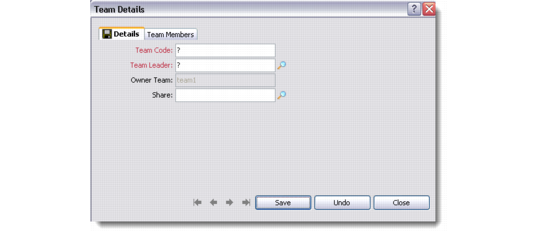
3 Choose Add from the menu. The Team Details dialog box displays.
Team Details
4 Complete the Details tab as required.
Team Code
Enter the team code.
Team Leader
Enter a team leader for the team. The team leader must be a user defined in the system.
Owner Team
If you are adding a sub-team, the name of the owner team appears in the Owner Team field.
Share
Enter teams to share data with. Specified teams will have access to selected team data.
5 Select the Team Members tab. The Members of Team <Name> listbox displays. The team leader is listed.
Note: You can also attach a user to a team by using the Team tab in the Users component.
6 Right-click the listbox and choose Attach User. The Attach User(s) window displays the system users.
7 Select the users to attach to the team and click OK.
Note: You can use Ctrl-click or Shift-click to select multiple users at a time.