Time Zone Maintenance
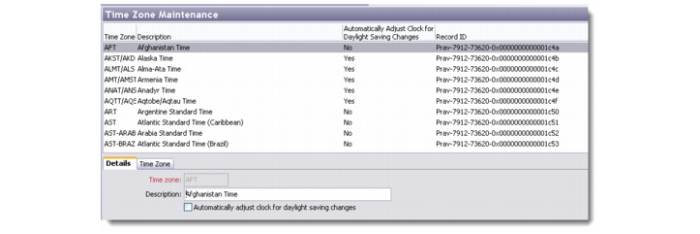
The Time Zone Maintenance option lets you manage records for all the time zones used by the system.
The Time Zone Maintenance browser displays the list of time zones available in the database. You can add, edit, copy, and delete time zones.
Time Zone Maintenance
Details
Use the Details tab to record the name and description of the new time zone.
Time Zone
Enter the name of the new time zone you are adding.
Description
Enter a description for the new time zone.
Select the check box if you want the system to automatically adjust the clock for daylight saving changes.
Time Zone
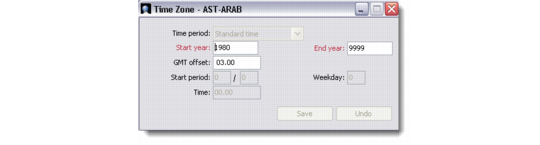
Use the Time Zone tab to record basic information about the new time zone.
Time Period
Use the drop-down list to choose the time period you want to add. This field is editable if Automatically Adjust Clock for Daylight Saving Changes is Yes. Valid choices are Standard time, Summer time and Daylight Saving time.
Start Year
Enter the beginning year of a range of years to which this time zone definition applies. In some countries, the implementation of time zones varies from year to year. Using start and end dates enables you to set up multiple records that apply to different periods.
End Year
Enter the ending year of a range of years to which this time zone definition applies. In some countries, the implementation of time zones varies from year to year. Using start and end dates enables you to set up multiple records that apply to different periods. If you do not know when the current definition will cease to be effective, use a number such as 9999 for the end year.
GMT Offset
Enter the actual offset in hours and minutes from Greenwich Mean Time (GMT). This number must be entered with either a plus sign (+) or minus sign (-) indicating the direction of the offset.
GMT is used internationally as the basis for establishing relationships among time zones and is never affected by daylight saving time adjustments.
Start Period
When Automatically Adjust Clock for Daylight Saving is Yes, enter the first day of the week in which the change of time occurs in MM/DD format. This format is required regardless of the date format you are using.
For the United States, daylight savings normally begins on the second Sunday in March (identified by a start date of 03/08) and ends on the first Sunday in November (identified by a start date of 11/01).
This field is used in conjunction with the Weekday and Time fields to identify precisely when the time change occurs.
Note: Ensure that the date you choose falls in the same week for every year that the new time period remains effective. For example, if you choose the last Sunday in March as the start date for a particular time period, then your start period cannot be a date earlier than 25 March in any given year.
Weekday
When Automatically Adjust Clock for Daylight Saving is Yes, enter a number (0-7) indicating the day of the week (identified by the Start Period field) when the time change occurs:
Enter 0 if the change occurs on the date entered for Start date, regardless of the day of the week on which it fails.
Enter a number in the range 1-7 corresponding to Sunday through Saturday if the change always occurs on a certain day of the week. For example, in the US, time changes always occur on Sunday (1).
Time
When Automatically Adjust Clock for Daylight Saving is Yes, enter the exact time of day (identified by the Start Period and Weekday fields) when the time change occurs. Use 24-hour clock format. This time is always entered in standard time.
In the United States, enter 02.00 when switching from standard time to daylight savings, but 01.00 when switching from daylight savings time back to standard.
Time Zone
Note: Make sure that the time zone data entered is correct for the current year and a few years in the future, and that the data is consistent with the time zone in ERP. Incorrect time zone data can cause unexpected results or malfunctions. Ensure that you update CRM Time Zone data when the Time Zone setting is changed in ERP.