Setting Up Nodes for AppServer Synchronization
To provide regional and remote nodes access to AppServer data synchronization method:
1 Choose Main Menu|Remote Sales Data Synchronization|Remote Node Setup.
2 Right-click the regional or remote node and choose Edit. The Node Details dialog box displays.
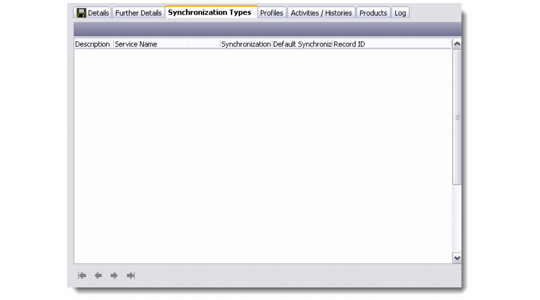
3 Click the Synchronization Types tab. The Synchronization Types browser displays.
Synchronization Types
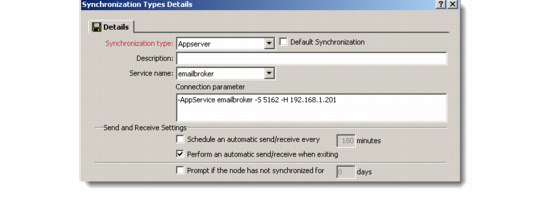
4 Right-click in the Synchronization Types browser area and choose Add. The Synchronization Type Details dialog box displays.
Enabling AppServer Method
5 From the Synchronization Type drop-down list, select Appserver.
6 In the Description field, enter a brief description of the method.
7 Select the service name from the drop-down list. This must be defined before setup. You can define services from Settings|System|Appserver Service Maintenance.
8 Schedule an automatic send/receive every <n> minutes. You can specify how often the Remote node connects to the host node when you are connected to the Office network.
9 Perform an automatic send/receive when editing. Select this option if you want the system to do a send and receive when you close your QAD CRM session. The system synchronizes if you are connected to the Office network.
10 Prompt if the node has not synchronized for <n> days. When you use this method, the system displays a pop-up message when you have not replicated for the specified number of days.
11 Click Save and Close.
Note: You cannot add multiple records for the same synchronization type. You can only edit an existing AppServer data synchronization record. To do this, right-click the record in the Synchronization Types browser and choose Edit. To delete the record, choose Delete from the right-click menu.
For details on enabling AppServer synchronization from regional and remote nodes, see
Synchronizing Data Using the AppServer.