Setting Up Microsoft Exchange Server
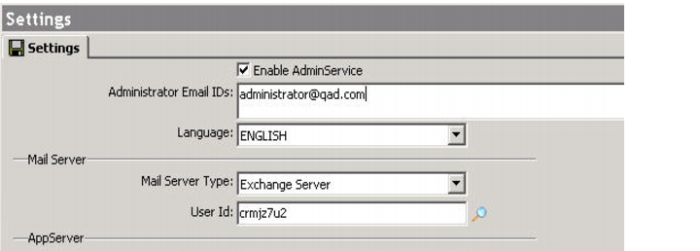
QAD CRM can be integrated with Microsoft Exchange Server 2007 or 2010. As part of the integration steps, you must set up a user with a mailbox using Active Directory Users and Computers. Make sure that this user has the same Email ID as the one specified in the Administrator Email IDs field under menu Settings|System|AdminService|Settings.
AdminService - Settings
Use the following steps to set up Microsoft Exchange Server for integration with QAD CRM.
Note: If there is no mention of a version number, Microsoft Exchange Server refers to both Microsoft Exchange Server 2007 and Microsoft Exchange Server 2010.
1 Create a user in Microsoft Exchange Server named AdminServiceUser with a mailbox, where AdminServiceUser is the Adminservice user ID.
a Choose Start|All Programs|Administrative Tools|Active Directory Users and Computers.
b Right-click the User node in the left pane and choose New|User.
c Enter AdminServiceUser in the First Name and User logon name fields. Click Next.
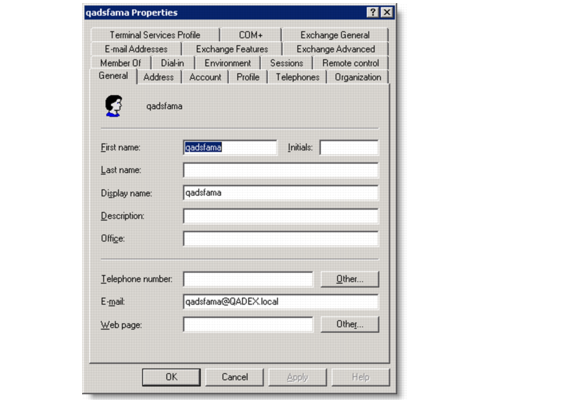
d Right-click AdminServiceUser and then choose Properties to verify the following information:
Properties - General Tab
• The e-mail address of
AdminServiceUser. It should be
AdminServiceUser@
yourdomain. For example, if
AdminServiceUser is admin and the domain name is test.com, then the e-mail address should be
[email protected].
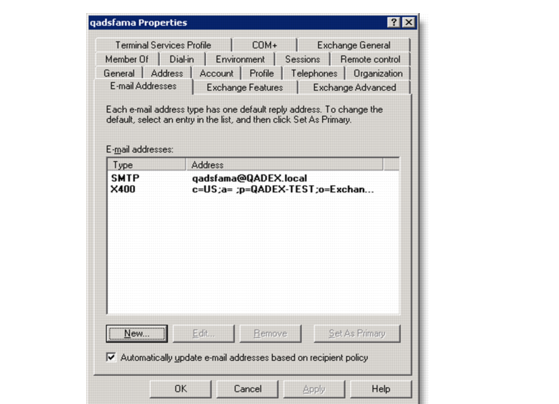
• The e-mail address of AdminServiceUser on the E-mail Addresses tab. Information may vary depending on your installation. If the e-mail address entries are missing, click New to create them.