Maintain Frames
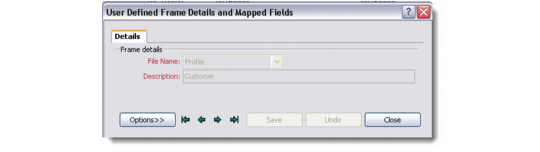
You can maintain frames from the left pane of the User Defined Fields screen. Right-click in this area and choose Add Frame. The User Defined Frame Details window displays.
User Defined Frame Details
Details
Use the Details tab to record the description for a new user-defined frame.
File Name
Use the drop-down list to select the module under which to place the new user-defined frame.
Description
Enter a name for the new user-defined frame you are creating.
Note: Both fields are mandatory.
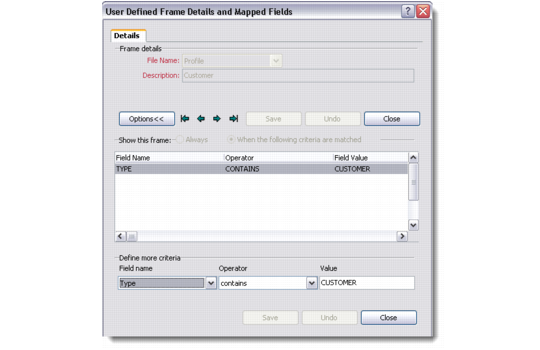
Click Options to expand the window and define conditions that the system applies while displaying user-defined fields.
Example: You want the user-defined field tab to display only for those profiles that are of type Customer. You can create these settings by defining a condition where Type (Field Name) Contains (Operator) Customer (Field Value).
User Defined Frame - Options
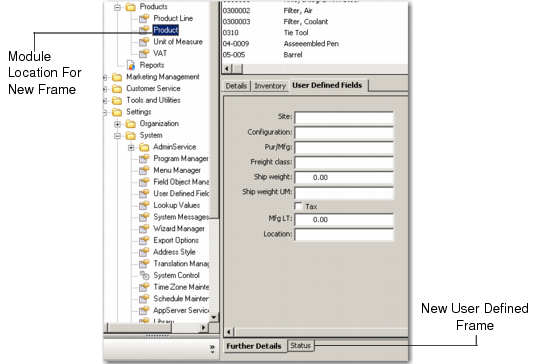
Click Save to create a new user-defined frame in the module you selected. To verify, you can navigate to the relevant module and view the new frame under the User Defined Fields tab. The new frame appears as a new tab as indicated in the figure below.
New User Defined Frame
After defining a frame you need to add fields to it. You can then verify that the new fields you create appear in the user-defined frame for that particular module.