Maintain Fields
You can add fields to the new frame using two different methods:
• Add Field—Lets you add field-level details such as name, description, type and associated values.
• Design Frame—Lets you add field objects and provides a visual representation of the changes to your frame.
Add Field
The Add Field option is more suited to users who have good knowledge of the system and its databases. Since this option does not provide any visualization of the fields you create, you must be able to visualize the size and placement of field objects within a frame. To use this option, do the following:
1 Select the new frame from the left pane of the User Defined Fields screen.
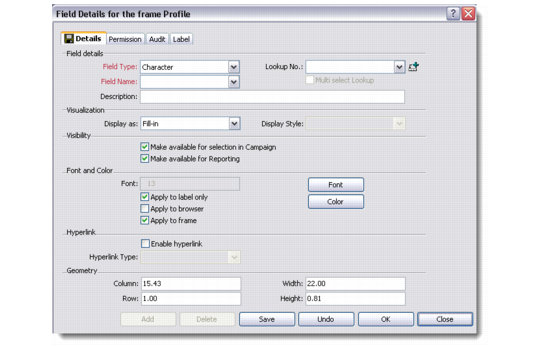
2 Right-click in the right part of the screen and choose Add Field. The Field Details for Frame window displays.
Add Field Details for Frame
3 Enter the required field object details on all the tabs—Details, Permission, Audit, and Label.
4 Save the settings.
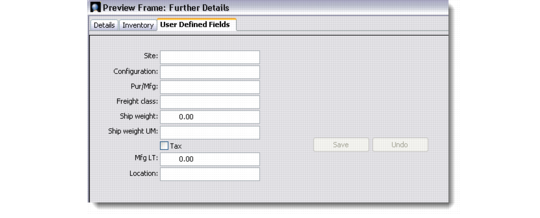
You can now view the user-defined fields you added through the Preview Frame option. You can also navigate to the relevant module and verify the user-defined fields.
Preview Frame
Design Frame
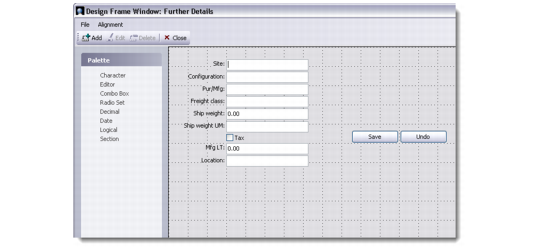
The Design Frame option lets you use a design grid, add fields to a new frame, and place those fields appropriately. Even if you have defined fields using the Add Field option, the Design Frame can help in the placement of those fields. The design grid also gives you the option to align fields and check their placement in a dynamic setting.
Design Frame
To use the Design Frame option, do the following:
1 Select the new frame from the left pane of the User Defined Fields screen.
2 Right-click and choose Design Frame or click the Design Frame button on the toolbar. The Design Frame window displays.
3 Select the field object types that you want to add from the Palette on the left. This automatically opens the Add Field Details for Frame window.
4 Add field level details in the Add Field Details for Frame window.
5 Select field objects and use their handles to move them or alter their size. You can use the Alignment option from the menu to fix the alignment of the selected fields.
6 Save the settings.
You can now view the user-defined fields you added to a new frame through the Preview Frame option. You can also navigate to the relevant module and verify the user-defined fields.