Wizard Manager
The Wizard Manager lets you maintain wizards used in the system. Wizards help enter data in a logical, predefined format.
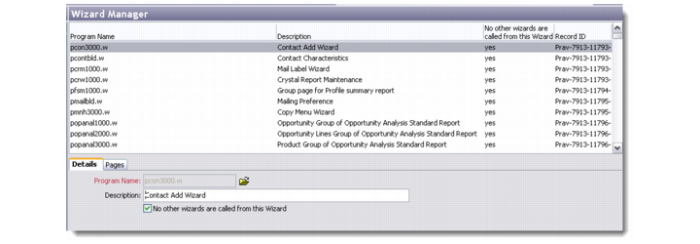
The Wizard Manager browser displays the list of wizards being used by QAD CRM. You can add, edit, and delete wizards through this screen.
Wizard Manager
Details
Use the Details tab to record the program name and description for a new wizard.
Program Name
Enter or choose the program name for the new wizard you are creating.
Description
Enter an appropriate description for the wizard.
No other wizards are called from this Wizard
Select this check box to confirm that the wizard you are creating will not be called from any other wizard in the system. If you leave this check box clear, it means the current wizard will have a parent-child relationship with one or more wizards in the system.
Pages
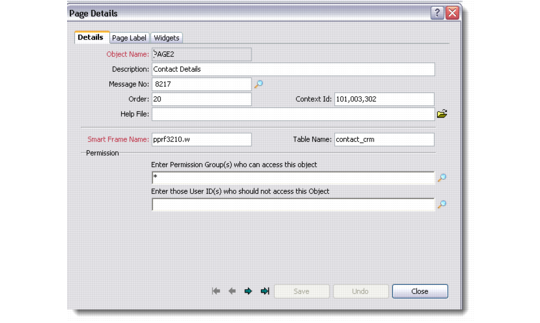
The Pages tab displays the pages or widgets used in a wizard depending on the radio button you choose. It also lets you add subsequent pages to a wizard through the Page Details window. You can also edit, copy, and delete wizard pages from here.
Details
Object Name
Enter the object name or the page number for the new page. The object name must be preceded by the word PAGE like PAGE01, PAGE02, and so on.
Description
Enter a description for the new page.
Message No
Use the lookup to choose the system message number that you want displayed as help text. The message that you specify here displays as a Tooltip when the end user runs the wizard and focuses on the page link.
Order
Enter the numeric order in which the new page is available in the wizard.
Context ID
Enter the context sensitive ID that links to the appropriate help topic in the system help file.
Help File
If you want to invoke a help file other than the default help file used in the system, click the folder icon to choose an alternate file. The Context ID should pertain to this file.
Smart Frame Name
Enter the name of the program that should run when users open the page through the wizard.
Table Name
Specify the database table where you want to store data gathered through the page.
Permission
Use the lookups to choose access rights for the page you are adding to the wizard. Enter an asterisk (*) in the Permission fields to give complete access to all user groups.
Page Details
Page Label
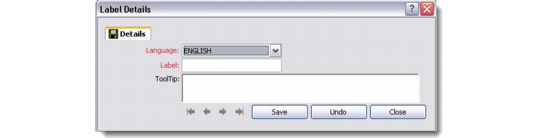
Language
Select the language of the page label.
Label
Enter the text for the page label.
Tooltip
Enter a Tooltip for the page label. A Tooltip provides the end user with a description of the label.
Label Details
Widgets
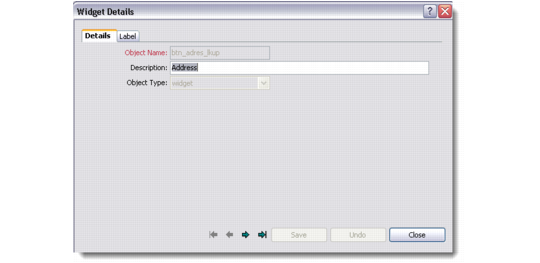
Object Name
Enter the object name for the widget associated with the page.
Description
Enter a description for the widget.
Object Type
Select object type from the drop-down list.
Wizard Manager