Customer Relationship Management 6.7
>
Administration Guide
>
Template Manager
>
Emails
Emails
Using the Emails option, you can create and save templates for e-mail messages. These templates contain pre-defined content and data from specified fields, and are useful in composing e-mail messages that are to be sent to multiple contacts. They are especially suitable for sending out emailshots through the Campaign module, where e-mail messages regarding a campaign are sent to a filtered target audience.
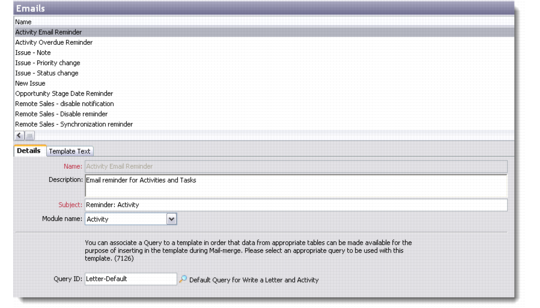
You can manage e-mail template records from the Emails option. Go to Main Menu|Settings|Template Manager|Emails. Right-click in the browser area and choose to add, edit, copy or delete a template record from the list displayed.
Emails-Details tab
Details
Use the Details tab to record basic information for a new template.
Name
Enter a name for the new template record you are adding. This is a mandatory field.
Description
Enter a description for the template you are creating. You could include the purpose and function of the template in this field.
Subject
Enter the subject line for the e-mail template. This subject line is used for all mails that are sent out using this template record. This is a mandatory field.
Module Name
Select the module name from the drop-down list, if you wish to filter the templates using module name during selection.
Query ID
Use the look-up to select the appropriate query that you want to attach with your template. If you leave this field blank, the e-mail template record is available across all modules.
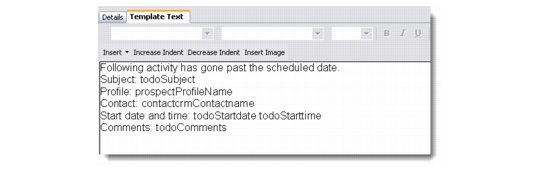
Template Text
Use the Template Text tab to design a template for the selected e-mail template record. This tab contains an editing toolbar similar to that of Microsoft Word. You can use the Insert button to insert custom results of associated queries.
Emails-Template Text tab
Save the template record. It displays in the Emails browser as a registered e-mail template.