Customer Relationship Management 6.7
>
Administration Guide
>
QAD AdminService
>
Managing Defined Jobs
Managing Defined Jobs
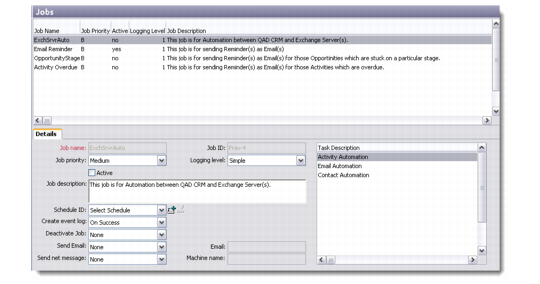
Use the Jobs screen in QAD CRM to view defined jobs for QAD ADS. To access the Jobs screen, go to Main Menu|Settings|System|AdminService|Jobs.
You can use the following system-supplied defined jobs that QAD ADS performs for any selected instance:
• Activity Overdue: This job is for sending Reminder(s) as Email(s) for those Activities which are overdue.
• Email Reminder: This job is for sending Reminder(s) as Email(s)
• Opportunity Stage: This job is for sending Reminder(s) as Email(s) for those opportunities which are stuck on a particular stage.
• ExchSrvrAuto: This job is for Automation between QAD CRM and Microsoft Exchange Servers.
The Jobs screen is divided into two parts—the top half is a browser displaying the list of defined jobs available, while the bottom half opens the selected job in edit mode.
Jobs
To edit a job, select a job and then do one of the following:
• Click the Edit button on the toolbar.
• Right-click and choose Edit.
• Choose Edit from the File menu.
Note: Similar options are available for Add and Delete.
When you right-click and choose Add, the system displays the types of defined jobs available. After you add a job, it displays as a new record in the browser.
You can only choose the defined job type that you want to add. All field values and tasks associated with a defined job are preset in the system. However, you can edit the fields or the task settings according to your requirements.
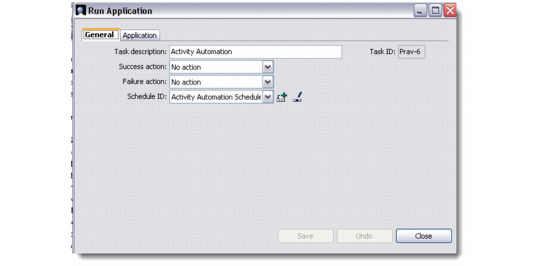
Tasks can only be edited by right-clicking in the Task Description area and choosing Edit. The Edit Task window displays to allow you to edit task settings. Depending on the task type you select, the appropriate Edit Task window displays.
Edit Task-Opportunity Stage Date Reminder
Note: You cannot add or delete a task.