Specifying Activity and Transaction History Records
To specify conditions for a node to access activity and transaction history records during synchronization:
1 In the Node Details dialog box, click the Activity/History tab.
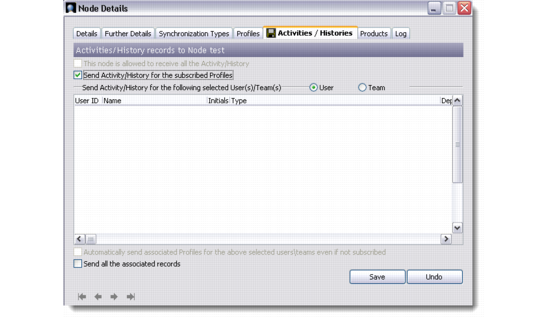
Node Details - Activity/History
2 If you subscribe to all profiles for the node, the option labeled This node is allowed to receive all the Activity/History is enabled.
Select this option to provide the node access to synchronize all activity and transaction history records.
3 If you subscribe to selective profiles, the Send Activity/History for the subscribed profiles option becomes available.
Select this option to provide the node access to the activities and transaction history records of these profiles.
See
Specifying Profile Records for details on specifying profiles.
4 If you want the node to receive relevant profile details when activity records are created by certain users or teams—regardless of whether the profile records associated with the activity records are subscribed or not—do the following:
a Select User or Team.
b Right-click the record list area and choose Attach.
c Select the users or teams. You can select multiple records.
d Click OK. The user or team records appear in the record list area.
e Select the Automatically send associated Profiles even if not subscribed check box.
5 If you want the node to receive profile associated records, select the Send All The Associated Records check box and then click Save.