Synchronizing Data Using the AppServer
To synchronize data using the AppServer method:
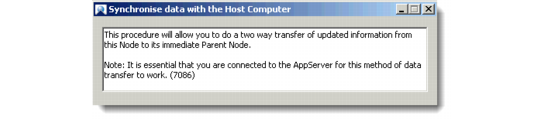
1 Choose Main Menu|Remote Sales Data Synchronization|Synchronize Data with Host Computer. The Synchronize Data with the Host Computer dialog box displays.
Initiating AppServer Data Synchronization
2 Click Test Connection.
If the AppServer connection parameters are set correctly, a message displays confirming this. Click OK.
The connection may fail if:
• The computer network at the office is down.
• Your computer has a firewall that does not allow the connection to take place.
• The network connection that your laptop is using is slow or down.
• The connection parameters are incorrect.
• The AppServer is not running.
Restore the connection. Repeat steps 1 and 2.
3 Click Start. The data synchronization starts and the synchronization status displays in the progress window.
Once the data is synchronized, the Replication Process Summary message displays. Click the information icon to view replication details.