Setting Up Activity Integration
The system supports the following activity types:
• Telephone
• Letter
• E-mail
• Appointment
• Script
• Task
Microsoft Exchange Server supports these item types:
• Appointment
• Meeting
• Task
For synchronization, system activity types must be appropriately mapped to Microsoft Exchange Server activity types. The appointment and task type activities of both systems are mapped by default and cannot be changed. You must map other activity types, as well as set up activity synchronization.
Setting Up Activity Synchronization
To set up activity details synchronization in the system:
1 Choose Main Menu|Settings|Mail Server Integration|Settings and Switches.
2 Click the Activities tab.
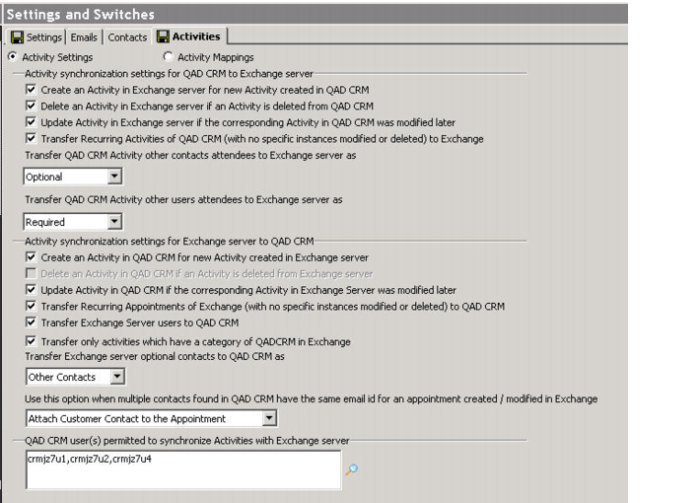
Settings and Switches - Activities Tab
3 Select Activity Settings, if this option is not selected.
4 To enable activity synchronization from the system to Microsoft Exchange Server, select the required options in this area:
Activity synchronization settings for QAD CRM to Exchange Server
Available options are:
• Create an Activity in Exchange Server for new Activity created in QAD CRM.
• Delete an Activity in Exchange Server if an Activity is deleted from QAD CRM.
• Update Activity in Exchange Server if the corresponding Activity in QAD CRM was modified later.
• Transfer Recurring Activities of QAD CRM (with no specific instances modified or deleted) to Exchange Server.
• Transfer QAD CRM Activity other contacts attendees to Exchange Server. Select No Transfer, Optional, or Required depending on how you want other contact attendees to be mapped in Exchange Server.
• Transfer QAD CRM Activity other users attendees to Exchange Server. Select No Transfer, Optional, or Required depending on how you want other users attendees to be mapped in Exchange Server.
5 To enable activity synchronization from Microsoft Exchange Server to the system, select the required options in this area:
Activity synchronization settings for Exchange Server to QAD CRM
The available options are:
• Create an Activity in QAD CRM for new activities created in Exchange Server.
• Update Activity in QAD CRM if the corresponding activity in Exchange Server was modified later.
• Transfer Recurring Appointments of Exchange (with no specific instances modified or deleted) to QAD CRM.
• Transfer Exchange Server users to QAD CRM.
• Transfer only activities that have a category of QADCRM in Exchange.
• Transfer Exchange Server optional contacts to QAD CRM. Select No Transfer, Other Contacts, or Associates depending on how you want to map optional contacts in a CRM activity record.
• Use this option when multiple contacts found in QAD CRM have the same e-mail ID for an appointment created/modified in Exchange. Select Do Not Attach the Contact to the Appointment or Attach Customer Contact to the Appointment.
• Select the QAD CRM users that are permitted to synchronize activities with the Microsoft Exchange Server. Not all the user IDs are displayed; only users with correct Exchange Server configurations are displayed here.
6 Click Save.
Mapping Activity Types
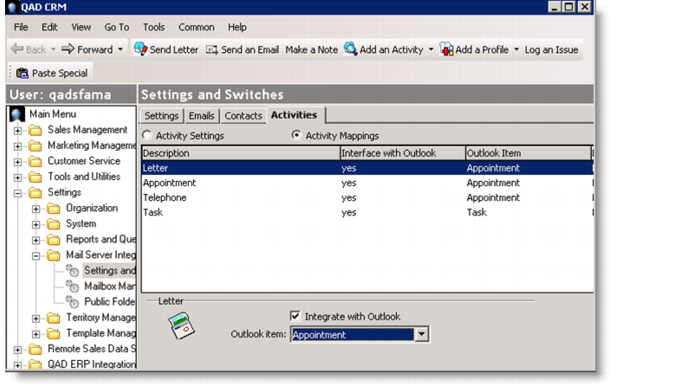
You can map QAD CRM activity types Letter, Appointment, and Telephone to Microsoft Outlook appointments. You can map QAD CRM tasks to Microsoft Outlook tasks.
To map system activity types to Microsoft Exchange Server activity types:
1 Choose Main Menu|Settings|Mail Server Integration|Settings and Switches.
2 Click the Activities tab.
3 Select Activity Mappings.
Settings and Switches - Activity Mappings
4 Select the system activity type you want to map to Microsoft Exchange Server activity type.
5 Select the Interface with Outlook check box.
6 From the Outlook Item drop-down list, select the Microsoft Exchange Server activity type to which you want to map the selected activity type.
7 Repeat steps 4–6 to map other activity types to Exchange Server activity types.
8 Click Save.
Note: Appointment and Task are mapped by default and cannot be changed.