Profile Processing
To reassign profiles:
1 Select the profiles you want to reassign to a different account manager.
Note: To select multiple profiles, hold down the Ctrl key and select the profile records.
2 Right-click the list of territories and choose Process.
Note: You can also choose File|Process or click Process on the toolbar.
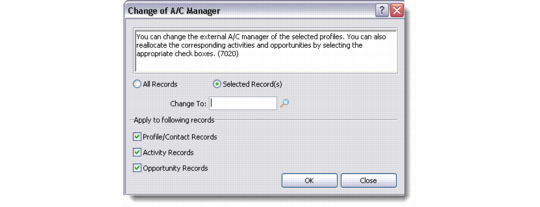
The Change of A/C Manager dialog box displays.
Change of A/C Manager
3 Specify the profiles to reassign: All Records or Selected Records.
4 In the Change To text box, enter the new account manager for the profiles.
5 In the Apply to Following Records area, select which records to reassign: Profile/Contact Records, Activity Records, or Opportunity Records.
6 Click OK. The specified account manager is assigned to the selected profiles.