QAD Customer Relationship Management 6.7.2
>
Administration Guide
>
System Configuration
>
Address Style
Address Style
You can use the Address Style option to maintain the various forms of addresses used in the system. The system gives you the flexibility to define different address styles for different countries.
Example: Suppose you have to post campaign letters to addresses both within your country, and overseas. For addresses belonging to your own country, you may not want to display the country name to save space on the mailing label. However, you require that all overseas addresses mention the country name as well. In such a case, you can define two address style options—one for inland addresses, and another one for overseas addresses.
The address style you define here is used throughout various modules in the system:
• In All Profiles—Details and Addresses tabs.
• In Contacts—Details tab and Print Mail Labels option.
• In Marketing Campaigns—Details tab in Media Source and Target Details window.
• In Settings—Details tab in Users and Business Units.
• In CSR Maintenance—Details tab.
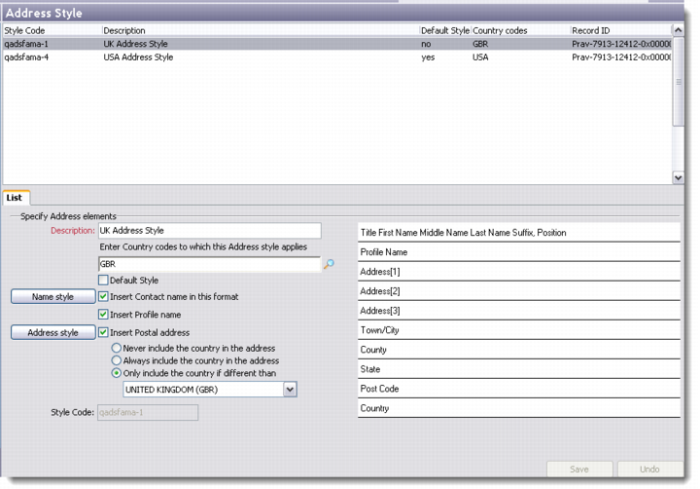
The Address Style browser displays the list of address styles currently in use. You can add, edit, copy, and delete address styles through this screen.
Address Style
List
Use the List tab to record the elements of a new address style.
Description
Enter the description for the new address style you are creating.
Enter Country Codes to which this Address Style applies
Use the lookup to choose the codes for those countries in the system database to which the current address style applies. Use commas to enter multiple country codes.
Default Style
Select this check box if you want this to be the default address style for all addresses recorded.
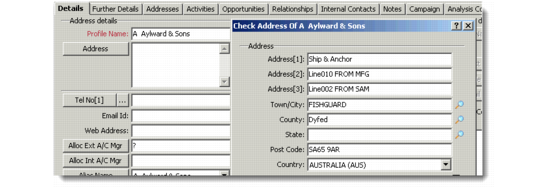
Note: The address editor in Main Menu|Sales/Marketing Management|Addresses|All Profiles|Details shows up blank if the system cannot find a corresponding address style record. This is because the addresses displayed in Profiles are picked up by the system from the Address Style settings defined here. The system looks for the address style record using the country. If it cannot find a record this way, the system uses the default address style record.
All Profiles: Blank Address Editor
Name Style
Click this button to display the Name Style window. Use this window to record the format in which you want the name to appear.
Insert Contact Name in this format
Select this check box if you want the contact name to appear in the format specified here.
Insert Profile Name
Select this check box if you want the profile name to be included in the address style you are creating.
Address Style
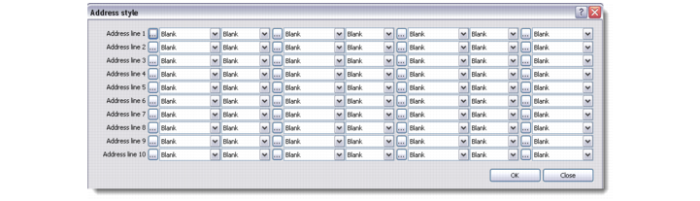
Click this button to display the Address Style window. Use this window to record the format in which you want the address to appear.
Address Style Window
Insert Postal Address
Select this check box if you want the postal address to be included in the address style you are creating. Choose the appropriate radio button to define the condition under which to include the postal address.
Style Code
This is a unique system generated number for each new address style that is added.
The address style you create is displayed in a preview frame.