Activity and Reminder Settings
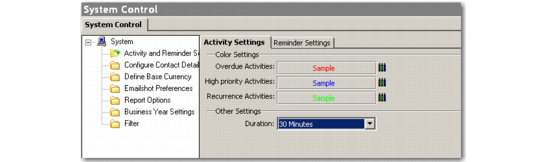
The Activity Settings tab lets you apply color settings to differentiate between activity categories. System default settings use red to indicate overdue activities, blue for high-priority activities, and green to highlight recurring activities.
Activity Settings
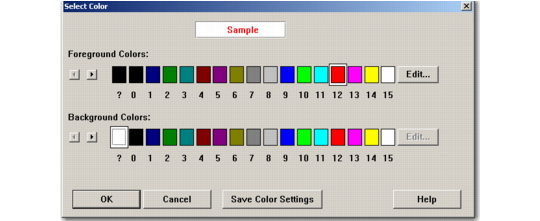
However, you can change these default settings by clicking on the Select Color icon. The Select Color window displays. Use it to define foreground and background colors for a selected activity category.
Select Color
The Activity Settings tab also lets you specify a default duration for any new activity that you add. You can select an appropriate time interval from the Duration drop-down list.
Note: The duration that you specify here as the default is used by the system when the end user creates a new Appointment type activity. The default duration that appears in the Appointment Details window is automatically taken from this field.
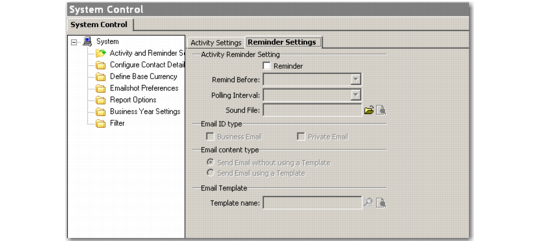
Use the Reminder Settings tab to enable reminders for activities.
Reminder
Select the Reminder check box to activate the reminder function for activities.
Remind Before
Select the time interval prior to the actual event when you want the reminder to be sent.
Note: The time interval you select here is used by the system as the default for reminders. However, you can change this for individual activities when you create a new activity or modify an existing one.
Polling Interval
Select the default polling interval (“snooze time”) for reminders in the system.
Sound File
Select a sound file from your hard drive.
Email ID Type
Select the e-mail ID to which you want the reminder e-mail to be sent.
Email Content Type
Indicate whether you want to use a template to create the reminder e-mail.
Email Template
Select the template file for the reminder e-mail.
Reminder Settings