Setting Up Remote Nodes
To create a remote node in QAD CRM:
1 Choose Main Menu|Remote Sales Data Synchronization|Remote Node Setup.
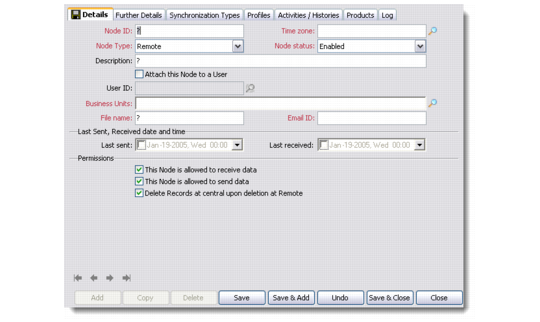
2 Right-click the host or regional node and choose Add. The Node Details dialog box displays.
Adding Details of a Remote Node
3 In the Node ID field, enter the node ID.
4 Specify the remote node details.
a Select Remote from the Node Type drop-down list.
b In the Description field, enter a brief description of the node.
c In the Time Zone field, specify the time zone of the remote node.
d Select the Attach this Node to a User check box. When attaching to a user, the system automatically assigns all the information to the node.
e A remote node can receive one or more than one business unit data from Host node. Enter required business units ids you want the remote node to receive.
f In the File name field, enter the name for the host node data subset file. For example, you can enter the name of the node.
Do not specify the extension; the data subset file is automatically saved in the required format (.res).
g In the Email ID field, enter the e-mail address of the node administrator or user.
h In the Permissions area, select the permissions you want to grant to the node.
5 Click Save.