Specifying Profile Records
To specify conditions for a node to access profile records during synchronization:
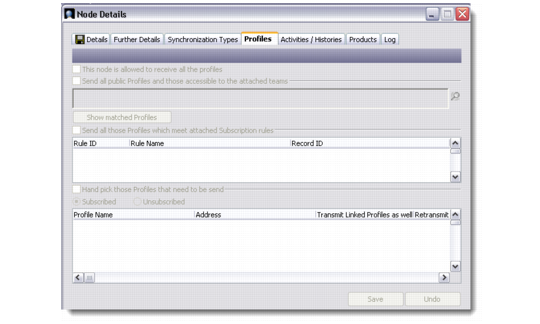
1 In the Node Details dialog box, click the Profiles tab.
Node Details - Profiles
2 If you want the remote node to access all profiles, select the This Node Is Allowed To Receive All The Profiles check box. Then click Save. Skip the following steps.
3 To specify the teams whose profiles the node can access:
a Select the Send all public profiles and those accessible to the attached teams check box.
b In the field for teams, use the lookup to enter the teams whose profiles the node can access.
c Choose the option to subscribe profiles by defining the rules that match other conditions, but do not belong to the teams.
Note that in addition to profiles associated with teams, you can specify other conditions to select profiles, as described in subsequent steps.
4 To specify a subscription rule for selecting profiles, select the Send all those profiles that meet attached subscription rules check box. Then do the following:
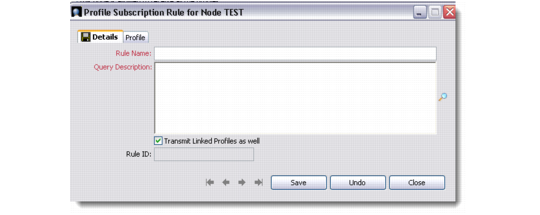
a Right-click the rule area and choose Add. The Profile Subscription Rule dialog box displays.
Add a Rule for Selecting Profiles
b In the Rule Name field, enter a descriptive name for the rule.
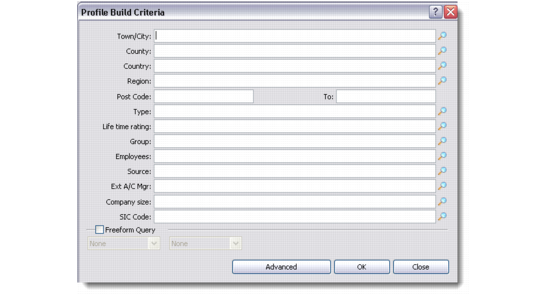
c Click the lookup button next to the Query Description field. The Profile Build Criteria dialog box displays.
Profile Build Criteria
d Specify the conditions for selecting profiles. Click OK.
e To select all profiles linked with the profiles that comply with the condition, select the Transmit Linked Profiles as well check box.
f Click Save.
To view the profiles that comply with the rules, click the Profile tab. Then select Subscribed.
g Click Close. If profile records match the conditions, the Select an option dialog box displays.
h Choose the option to subscribe or unsubscribe the matched profile records as required and click OK.
In the Node Details dialog box, the rule displays in the list of rules.
5 To build a list of custom profiles for the node:
a Select the Hand pick those profiles that need to be sent check box.
b To subscribe a profile record, right-click the profile area and choose Subscribe.
c Select the profile record and click Save. Then click Close.
Target Details
d To build a profile list based on your criteria, right-click the profile area and choose Build.
e Specify your criteria and click Save. You can subscribe to all profiles linked to the profiles that match the criteria.
Note: Once the selected profiles display, you can unsubscribe them, move them to a different node, and retransmit them even if they have not been modified, or detach them from the node. You can select multiple profiles from the lists profiles. To access these options, select the profiles, right-click, and choose the option.
6 Click Save in the Node Details dialog box.