QAD Customer Relationship Management 6.7.3 > Administration Guide > Territory Management > Define Territories
  
Define Territories
To define a territory:
1 Choose Main Menu|Settings|Territory Management|Define Territories. The Allocation by Method browser displays.
2 Depending on which manager you want to define a territory for, click either External A/C Manager or Internal A/C Manager. The list of territory types displays.
 
Region
A region defines the territory; for example, Asia-Pacific.
Post Code
A post code defines the territory; for example, 95066.
County
A county defines the territory; for example, San Francisco.
State
A state defines the territory; for example, California.
Country
A country defines the territory; for example, Czech Republic.
Group
A group defines the territory; for example, QAD or Oracle.
SIC Code
A code defines the territory; for example, 44613 - Optical Goods Stores.
Profile Type
A profile type defines the territory; for example, Competitor or Customer.
Analysis Group
An analysis code defines the territory; for example, Airfreight export or Road freight export
3 Select a territory type.
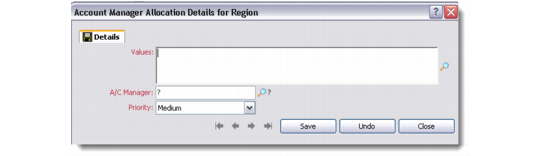
4 Right-click the Define Territories list box, and then choose Add. The Account Manager Allocation Details dialog box displays for the selected territory type.
Note: The context menu also contains options for editing or deleting an allocation, as well as creating an Allocation by User report.

Account Manager Allocation Details
5 Complete the fields as required.
Values
Enter a value for the territory type.
Note: You can enter multiple territory codes by using commas between values; for example, for post codes you can enter 95066, 95067, 95068.
A/C Manager
Enter a manager defined in the system to associate with the territory.
Priority
Enter a priority: Low, Medium, or High.
Note: Priorities are used to control display preferences in browsers if territories overlap. For example, if you define sales representative A for Sydney using the high priority and sales representative B with a medium priority, in the browser sales representative A displays above sales representative B.