QAD Customer Relationship Management 6.7.3
>
Administration Guide
>
System Configuration
>
Lookup Values
Lookup Values
The Lookup Values option lets you to create new lookups and add values to existing ones.
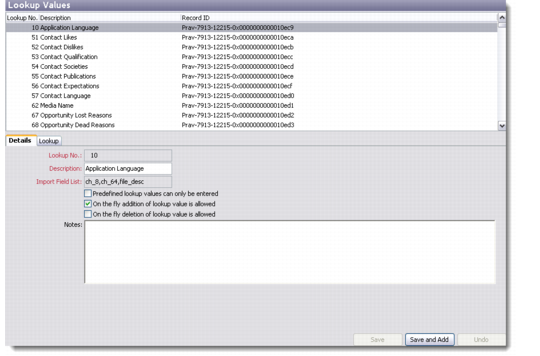
The Lookup Values browser displays the list of lookups available in the database. You can add, edit, copy, and delete lookups through this screen.
Lookup Values
Details
Use the Details tab to record the complete description of a new lookup.
Lookup Number
Enter a unique number for the new lookup you are creating.
Description
Enter a description for the lookup.
Import Field List
The Import Field List contains information about the fields that the system can import. Enter the column values to be populated through the Import File option. Use commas to enter multiple values.
Example: For a lookup based on regions, this field may contain values Ch_8,file_desc. This means that the file to import will contain information in this format—an eight-character name followed by a file description, as shown below.
APAC,Asia Pacific Region
CAN,Canadian Region
EUR,European Region
PAC,Pacific Region
US,United States Region
Note: The file to import must be a plain text file, and should not have headers or labels.
Predefined lookup values can only be entered
Select this check box if you want that wherever in the system the current lookup is used, the user can only enter or select values that are defined here. This option prevents the end user from entering new values directly into an associated field.
On the fly addition of lookup value is allowed
Select this check box to give the end user the flexibility to add new values to the lookup table from wherever this lookup is accessed.
On the fly deletion of lookup value is allowed
Select this check box to give the end user the flexibility to delete values from the lookup table from wherever this lookup is accessed.
Notes
Enter notes related to the lookup you are creating.
Lookup
Use the Lookup tab to add values to the lookup table.
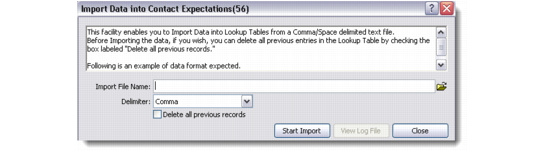
Through the Lookup Values screen you can also import data from an external source by importing a comma-delimited text file in comma-separated values (.csv) format to create records in a lookup table.
Import Data
To import records, complete the following fields:
Import File Name
Enter the file location from which to import the data for the lookup table values.
Delimiter
Select the appropriate delimiter from the drop-down list.
Delete All Previous Records
Select this check box if you want to delete any previous entries in the lookup table.
Example: If you are importing look up data for lookup number 54, the system will, during the import process, delete all previous lookup data for which lookup number is 54.
Click Start Import to start the import process. Once the import is complete, click View Log File to view the log file.