Manage Document Templates
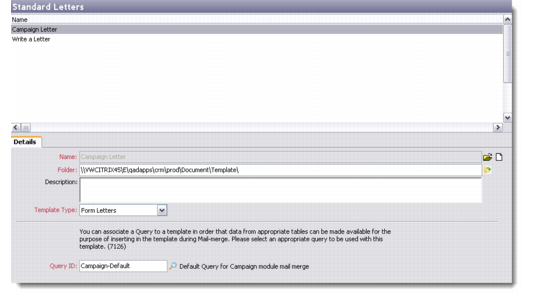
You can manage document template records from the Standard Letters option. Go to Main Menu|Settings|Template Manager|Standard Letters. Right-click in the browser area and choose to add, edit, copy, or delete a template record from the displayed list.
Standard Letters
Details
Use the Details tab to record basic information for a new template.
Name
Enter a name for the new template record you are adding. Alternately, select an existing template file by clicking on the folder icon.
Folder
Enter a folder location where you want to save the new template. This location serves as the default location for this template. You can browse for the location by clicking on the folder icon.
Description
Enter a description for the template you are creating. You could include the purpose and function of the template in this field.
Template Type
Select the template type from the drop-down list. Template type refers to the kind of document for which you want to create a template. Options include Form Letters, Mailing Labels, and Catalog.
Query ID
Use the look-up to select the appropriate query that you want to attach to your template.
Note: All fields except Description are mandatory.
Save the template record. It displays in the Standard Letters browser as a registered template. You can now design a template for this new record you created.