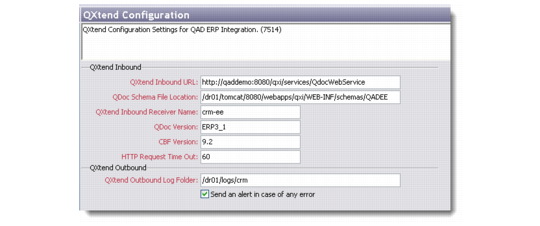
QXtend Configuration
QAD CRM uses QXtend to transfer data between data between QAD CRM and QAD Enterprise Applications – Enterprise Edition.
To access this option, go to Main Menu|QAD ERP Integration|Qxtend Configuration.
Qxtend Configuration
QXtend Inbound URL
Enter QXtend WebService URL; for example:
http://<hostname>:<tomcat_port>/<qxtend inbound webapp>/services/QdocWebService
• Replace <hostname> with the machine name where Tomcat is installed.
• Replace <tomcat_port> with the Tomcat port number.
• Replace <qxtend inbound webapp> with the QXtend Inbound WebApp.
QDoc Schema File Location
Enter QDoc schema file location folder. QDoc schemas are a product of the QGen generate process; for example:
<TOMCAT_HOME>/webapps/<qxtend inbound webapp>/WEB-INF/schemas/QADEE
• Replace <TOMCAT_HOME> with the tomcat installation directory
• Replace <qxtend inbound webapp> with the QXtend Inbound WebApp
QXtend Inbound Receiver Name
Enter the QXtend Inbound receiver name you created for QAD CRM to QAD Enterprise Applications. The QAD CRM installation guide suggests receiver name as CRMTOEESI.
Enter CRMTOEESI, if you created an inbound receiver as suggested in the installation guide. Otherwise, enter the QAD CRM to QAD Enterprise Applications inbound receiver name.
QDoc Version
Enter ERP3_1.
CBF Version
Enter 9.2.
HTTP Request Time Out
Enter the time-out in milliseconds for attempts to send QDocs to the QXtend Inbound Web service.
QXtend Outbound Log Folder
Enter a temporary folder name of the machine where QXtend is installed; for example, \tmp. QAD CRM Service Interface layer creates log files when it receives the data from QXtend outbound.
Send an alert in case of any error
Select this check box if you want to be notified in case of any errors. When this is selected, QAD CRM Service Interface Layer returns error details to QXtend Outbound.
Debug Settings
Select Logging Level, if you want debug QAD CRM Integration QXtend inbound routines. QAD CRM creates log files in the Progress session temp folder.
After you save the QXtend configuration settings on this tab, use the Switches and Settings option to specify control settings for each module that you want to integrate.