Address
Use this option to define control settings for transferring address-related information to and from QAD Enterprise Applications.
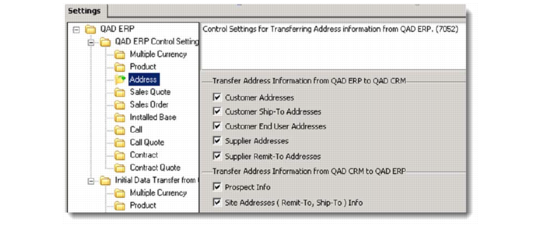
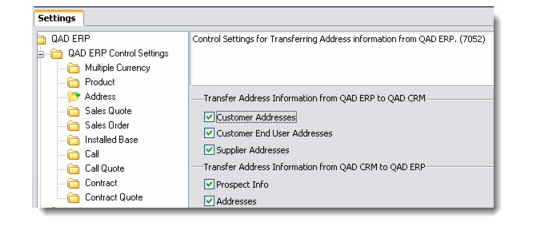
When you click QAD ERP Control Settings|Address, a list of address check boxes displays. These address types are associated with both QAD Enterprise Applications and QAD CRM. Select those check boxes for which you want to activate data transfer between applications.
Note: QAD CRM-QAD Enterprise Applications integration does not support QAD Enterprise Applications’ Address Code Change function (2.11). If you change an address code using this function, the corresponding code will not be changed in QAD CRM.
QAD Enterprise Application – Standard Edition
Address (QAD Enterprise Applications – Standard Edition)
From QAD Enterprise Applications to QAD CRM
Customer Addresses
Select this check box to enable the transfer of customers from QAD Enterprise Applications.
Customer Ship-To Addresses
Select this check box to enable the transfer of customer ship-to addresses from QAD Enterprise Applications.
Customer End User Addresses
Select this check box to enable the transfer of end users from QAD Enterprise Applications.
Supplier Addresses
Select this check box to enable the transfer of suppliers from QAD Enterprise Applications.
Supplier Remit-To Addresses
Select this check box to enable the transfer of supplier remit-to addresses from QAD Enterprise Applications.
From QAD CRM to QAD Enterprise Applications
Prospect Info
Select this check box to enable the transfer of customer/enduser/supplier addresses from QAD CRM.
When you create a new profile, QAD CRM does not send it to QAD Enterprise Applications automatically. This is because profile records can contain details of customers, suppliers, and competitors also. You have to manually select those prospect records that you wish to integrate with QAD Enterprise Applications as customers. The Send to QAD ERP option of QAD CRM sends information to the cm_mstr and ad_mstr tables of QAD Enterprise Applications.
However, if this option is selected, QAD CRM automatically sends address information to QAD Enterprise Applications once the profile is linked to a customer/supplier/enduser.
Site Addresses (Remit-To, Ship-To) Info
Select this check box to enable the transfer of remit-to and ship-to addresses from QAD CRM. You cannot create a new ship-to/remit-to address in QAD Enterprise Applications.
However, if this option is selected, QAD CRM automatically sends the address information to QAD Enterprise Applications, if the address record is linked ship-to/remit-to address.
QAD Enterprise Applications – Enterprise Edition
Address (QAD Enterprise Applications – Enterprise Edition)
From QAD Enterprise Applications to QAD CRM
Customer Addresses
Select this check box to enable the transfer of customers from QAD Enterprise Applications.
Customer End User Addresses
Select this check box to enable the transfer of end users from QAD Enterprise Applications.
Supplier Addresses
Select this check box to enable the transfer of suppliers from QAD Enterprise Applications.
From QAD CRM to QAD Enterprise Applications
Prospect Info
Select this check box to enable the transfer of customer/end user/supplier addresses from QAD CRM.
When you create a new profile, QAD CRM does not send it to QAD Enterprise Applications automatically. This is because profile records can contain details of customers, suppliers, and competitors also. You have to manually select those prospect records that you want to integrate with QAD Enterprise Applications as customers. The Send to QAD ERP option of QAD CRM sends information to the cm_mstr and ad_mstr tables of QAD Enterprise Applications.
However, if this option is selected, QAD CRM automatically sends address information to QAD Enterprise Applications once the profile is linked to a customer/supplier/end user.
Addresses
Select this check box to enable the transfer of ship-to addresses from QAD CRM.