Sales Order
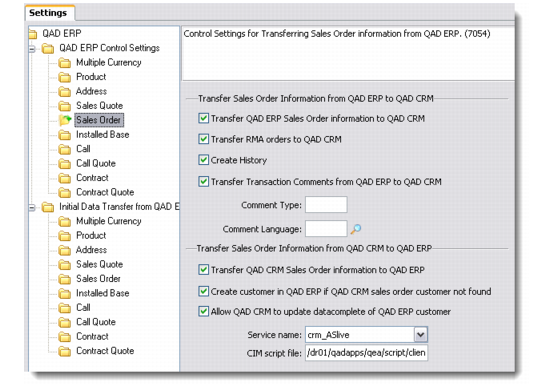
Use this option to define control settings for transferring sales order information to and from QAD Enterprise Applications. QAD CRM uses CIM to create sales order information in QAD Enterprise Applications.
Sales Order
From QAD Enterprise Applications to QAD CRM
Transfer QAD ERP Sales Order Information to QAD CRM
Select this check box to enable the transfer of sales order information from QAD Enterprise Applications.
Transfer RMA orders to QAD CRM
Select this check box if you want to transfer RMA orders from QAD Enterprise Applications.
Note: RMA numbers uniquely identify a specific return material authorization (RMA) in QAD Enterprise Applications. An RMA is used to track items returned from a customer for repair or exchange as well as the items issued as replacements. The RMA serves both as an authorization for the customer to return the items and as an internal tracking number to ensure that they actually are received. All subsequent activity references this RMA number, including any returns to supplier, repair work orders, and billing. Reports and inquiries can also be selected by RMA number.
Create History
Select this check box to enable creation of history records in QAD CRM for all sales order related transactions.
Transfer Transaction Comments from QAD ERP to QAD CRM
Select this check box to enable transfer of transaction comments from QAD Enterprise Applications.
Comment Type
Enter a comment type for the transaction.
Comment Language
Choose a comment language from the lookup.
From QAD CRM to QAD Enterprise Applications
Transfer QAD CRM Sales Order Information to QAD ERP
Select this check box to enable the transfer of sales order information from QAD CRM to QAD Enterprise Applications.
Create customer in QAD ERP if QAD CRM sales order customer not found
Select this check box if you want the details of the QAD CRM sales order customer to get recorded automatically in QAD Enterprise Applications during the transfer of sales order information. This option applies to cases when a particular QAD CRM prospect does not exist in the QAD Enterprise Applications database. Such records get created with the use of specified templates. For details, see
Templates Records.
Allow QAD CRM to update datacomplete of QAD ERP customer
This option applies to QAD Enterprise Applications – Enterprise Edition only. When you create a customer in QAD Enterprise Applications – Enterprise Edition, before you can create any transactional record against the customer (for example, a sales order), you need to access the customer record in the Customer Data Maintenance screen and complete all the data. When you complete all the data, QAD Enterprise Applications sets the datacomplete flag. Once the datacomplete flag is true, you can create any transactional records against the customer.
Select this option if you want QAD CRM to assign the mandatory data from the customer template record and assign the datacomplete flag.
If this option is not selected, you will not be able to create sales orders against a Profile record if it is not already linked to a customer.
Service Name
Select the CRM service name from the drop-down list. The service name you select here is used for CIM Load.
Note: The Service Name mentioned here may or may not be the same as the one mentioned in the ERP Management Control option.
CIM Script File
Enter the path to the CIM script file. The information contained in this file helps set up database connections, allocate appropriate PROPATH, and select programs to run for the CIM load.
Note: Sales Orders are transferred from QAD CRM to QAD Enterprise Applications using Computer Interface Method (CIM) load. CIM Data Load helps load legacy or non-Progress data from an external source into the QAD Enterprise Applications database for processing. Using CIM, data can be added using standard program validation. The import data can be in ASCII file format or acquired in real time. The CIM Data Load function takes information and loads it into the QAD Enterprise Applications database for later processing by the CIM Data Load Processor.
QAD CRM installers copies sample script file for Windows and Linux in the bin folder.
• client_cim_win.bat — You can use this file if QAD Enterprise Applications is installed on Windows.
• client_cim_linux.sh — You can use this file if QAD Enterprise Applications is installed on Linux/Unix.
Both are sample files. You need to modify them based on your configuration.
Note: When QAD CRM creates a sales order in QAD Enterprise Applications, it does it in a two-step process:
a Checks to see if a sales quote exists in QAD Enterprise Applications for the current opportunity. This would be the case where the Opportunity had been previously advanced to the Quote stage in QAD CRM.
If a sales quote does not exist, then one is created. This is the scenario where the quote stage has not been used in QAD CRM; for example, straight from Enquiry -> Order.
b A CIM file is built (including the Sales Quote number) and used to drive the Sales Quote Release to Order function.