Configuring Application Server
Configuring the AppServer environment is a must.
To prepare the AppServer environment:
1 Define the QAD CRM AppServer broker in the ubroker.properties file. Use the Progress $DLC/bin/genuuid utility to generate a new unique UUID for the new Progress AppServer definition.
For your reference, here is a sample of QAD CRM AppServer broker definition. Your actual broker definition can vary depending on your environment.
[UBroker.AS.QADCRM_AS]
appserviceNameList=QADCRM_AS
autoStart=0
brkrLoggingLevel=2
brkrLogThreshold=500000
brkrNumLogFiles=2
brokerLogFile=/qad/local/sandbox/team/crm2012ee/build/work/logs/QADCRM_AS.broker.log
collectStatsData=0
controllingNameServer=NS1
defaultService=0
infoVersion=9010
initialSrvrInstance=2
maxSrvrInstance=5
minSrvrInstance=2
noSessionCache=0
operatingMode=Stateless
portNumber=18683
PROPATH=/qad/local/sandbox/team/crm2012ee/crm/src/integration/mfgpro,/qad/local/sandbox/team/crm2012ee/build/work/pro/com/mfgpro,/qad/local/sandbox/team/crm2012ee/build/work/pro,/qad/local/sandbox/team/crm2012ee/build/work/qxtend/qxtadapter,/qad/local/sandbox/team/crm2012ee/build/work/config,/qad/local/sandbox/team/crm2012ee/build/work/dist,/qad/local/sandbox/team/crm2012ee/build/work/dist/us/bbi,/qad/local/sandbox/team/crm2012ee/build/work/dist/us,/qad/local/sandbox/team/crm2012ee/build/work/dist/us/bbi,/qad/local/sandbox/team/crm2012ee/build/work/dist/us/sq,/qad/local/sandbox/team/crm2012ee/build/work/dist/us/bbi,/qad/local/sandbox/team/crm2012ee/build/work/dist/us/tx,/qad/local/sandbox/team/crm2012ee/build/work/dist/us/bbi,/qad/local/sandbox/team/crm2012ee/build/work/dist/us/bbi,/qad/local/sandbox/team/crm2012ee/build/work/qra/qra.pl,/qad/mfgpro/93/qadfin_cache/2012.0.80.13/proxyobj/proxy.pl,/qad/local/sandbox/team/crm2012ee/crm/src/si/xrc,/qad/local/sandbox/team/crm2012ee/crm/src,/qad/local/sandbox/team/crm2012ee/crm/src/dataexch,/qad/local/sandbox/team/crm2012ee/crm/src/progs,/qad/local/sandbox/team/crm2012ee/crm/src/system,/qad/local/sandbox/team/crm2012ee/crm/src/triggers,/qad/local/sandbox/team/crm2012ee/crm/src/report
registerNameServer=1
registrationMode=Register-IP
srvrActivateProc=
srvrConnectProc=
srvrDeactivateProc=
srvrDisconnProc=
srvrLogFile=/qad/local/sandbox/team/crm2012ee/build/work/logs/QADCRM_AS.server.log
srvrLoggingLevel=2
srvrLogThreshold=500000
srvrNumLogFiles=2
srvrShutdownProc=
srvrStartupParam=-pf /qad/local/sandbox/team/crm2012ee/crm/src/qadsfamaprod_as.pf
srvrStartupProc=/qad
/local/sandbox/team/crm2012ee/crm/src/progs/pappsistart.p
sslEnable=0
uuid=-1cfaa137:137db7e54a9:-8000
workDir=/qad/local/sandbox/team/crm2012ee/build/work
2 Create the AppServer broker parameter file using QADCRMInstalldir/qadcrmparam_as.pf as a template to connect to the QAD CRM databases.
Note: Do not remove any predefined parameters in your . pf file. If the Progress database server and AppServer are installed on same machine, do not connect the databases using the client-server mode (-H -S parameters) in your parameter file and start the databases as self-service clients.
3 Specify following startup parameters for the AppServer broker:
a Specify the srvrStartupParam parameter:
srvrStartupParam=-pf <AppServer broker .pf file with full path>
Note: If you are using a Unicode database, make sure that the Appserver Broker parameter file contains the following Unicode parameters:
-cpinternal UTF-8
-cpstream UTF-8
-cpcoll ICU-UCA
-cpcase Basic
b Specify the srvrStartupProc parameter:
srvrStartupProc=QADERPInstallDir/qadcrm/prod/progs/pappsistart.p
4 Modify the PROPATH parameters of the AppServer brokers. Put QAD CRM directories in the PROPATH; for example, put the following folders in the PROPATH:
qadcrm\prod
qadcrm\prod\system
qadcrm\prod\integration\mfgpro
qadcrm\prod\dataexch
qadcrm\prod\progs
qadcrm\prod\report
qadcrm\prod\triggers
5 Start the AppServer broker using the following command:
ProgressInstallDir/bin/asbman -name <broker name> -start
6 To start the AppServer automatically, modify the QAD-supplied startup batch files.
Performing Additional Configurations for Integration with QAD Enterprise Applications
If QAD CRM is integrated with QAD Enterprise Applications (SE or EE), you must perform additional configurations for the application server.
QAD CRM Integrated with QAD SE
1 Modify the AppServer broker parameter file to connect to the QAD SE databases and qxevents databases in addition to the QAD CRM databases. The qaddb should be the first database in the parameter file.
2 Use the trigger option and specify the trigger location for QAD Enterprise Applications databases and qxevents database:
-trig triggers
3 Modify the PROPATH to add QAD SE directories before QAD CRM directories.
QAD CRM Integrated with QAD EE
1 Modify the AppServer broker parameter file to connect to the QAD EE databases and qxevents databases in addition to the QAD CRM databases. The qaddb should be the first database in the parameter file.
2 Use the trigger option and specify the trigger location for QAD Enterprise Applications databases and qxevents database:
-trig triggers
3 Modify the PROPATH of the CRM AppServer brokers:
• Add QADERPInstallDir/prod/integration/mfgpro as the first line
• Add QAD EE directories before QAD CRM directories
For example, the modified PROPATH looks something like this:
QADERPInstallDir/qadcrm/prod/integration/mfgpro
SSMPatchInstallDir/
QXtendInstallDir/
QXOInstallDir/
QADERPDesktopInstallDir/com/mfgpro
QADERPDesktopInstallDir/
QADERPInstallDir/
QADERPInstallDir/us/bbi
QADERPInstallDir/us
QADERPInstallDir/us/sq
QADERPInstallDir/us/tx
QADERPInstallDir/config
QADERPInstallDir/qra/qra.pl
QADERPInstallDir/fin/proxy.pl
QADERPInstallDir/fin/proxy
QADERPInstallDir/qadcrm/prod
QADERPInstallDir/qadcrm/prod/dataexch
QADERPInstallDir/qadcrm/prod/progs
QADERPInstallDir/qadcrm/prod/system
QADERPInstallDir/qadcrm/prod/triggers
QADERPInstallDir/qadcrm/prod/report
Note: Include SSMPatchInstallDir if the SSM patch is installed.
It is also important to include the following ERP folders in the CRM AppServer Propath:
• QADERPInstalldir/us/bbi
• QADERPInstalldir/us
• QADERPInstalldir/us/sq
• QADERPInstalldir/us/tx
4 Start the CRM AppServer broker using the following command:
ProgressInstallDir/bin/asbman -name <broker name> -start
Maintaining and Validating QAD CRM AppServer Information
Perform the following steps on the CRM Deployment Server:
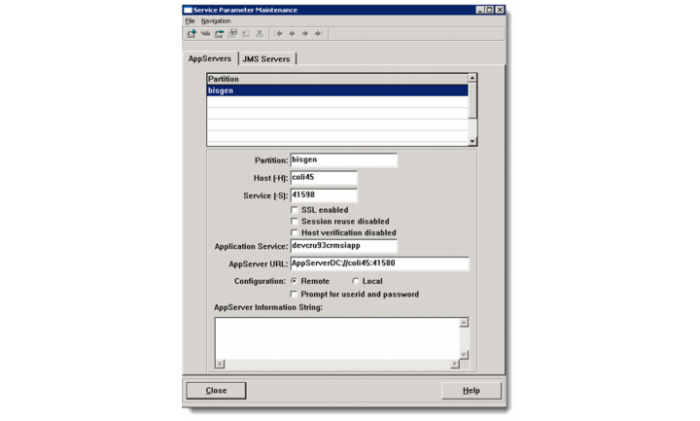
1 From the QAD CRM Deployment Utility screen, click the Maintain QAD CRM AppServer Information button.
2 In the Service Parameter Maintenance window, configure appropriate parameter values.
Partition
Do not modify the default partition value of bisgen, even if you intend to set up multiple CRM systems on the same deployment server.
Host (-H)
Enter the host name or IP address of the NameServer that provides the AppServer connection.
Service (-S)
Enter the service name or port number of the NameServer that provides the AppServer connection. The port number of the NameServer being used by your AppServer is referenced in its corresponding NameServer log file, whose location is specified in the Progress ubroker.properties file.
Application Service
Enter the name of a valid AppServer application service supported by the NameServer. The NameServer chooses an AppServer that supports this application service for the partition connection.
Use different Application Service names to distinguish between various CRM environments such as Test and Prod environments. For example, it could say TestCRM_AS for test CRM system and ProdCRM_AS for Production CRM system.
AppServer URL
Specify the URL for connecting to the AppServer; for example, coli45 is the name of the host and 41580 is the broker port number through which to connect to the AppServer. Your CRM AppServer port number is defined in the Progress ubroker.properties file.
Note: You are advised to use the DirectConnect method to connect to the AppServer through a URL similar to the AppServer URL, as shown in the screenshot.
Configuration
Choose Remote to connect to an AppServer using the connection information specified for this partition.
3 Save your changes and exit the Progress session completely.
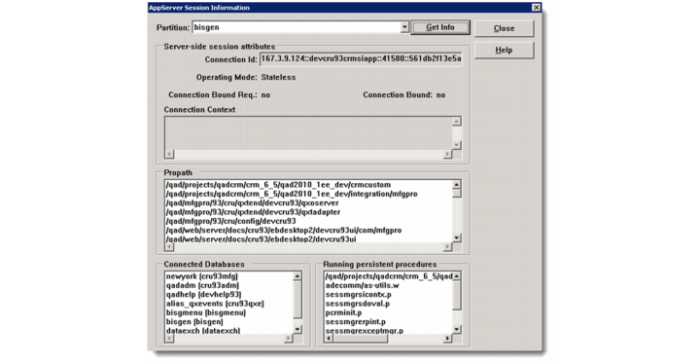
4 Run the QAD CRM Deployment Utility and click the Validate QAD CRM AppServer Information button.
5 In the AppServer Session Information window, click Get Info and make sure that the AppServer connection information such as PROPATH and databases information is correct as per your CRM environment configuration.
If the connection is successful, you will see a connection string in the connection Id fill-in beginning with the Host IP address that hosts the appserver.
6 A file called appsrvtt.d has now been updated to record the AppServer information you have set up.
Copy this newly updated appsrvtt.d file from the folder QADCRMInstallDir\ to the folder QADCRMInstallDir\webclient\frontend\ before proceeding to the generation of the CRM cab files in the next section.