Creating Separate QAD CRM Environment
Prerequisites
For an integration with QAD Enterprise Applications, a corresponding environment should be available for each separate QAD CRM environment you want to set up.
Duplicate Environment Creation Process
Make a copy of the QADCRMInstallDir on your deployment server to a new folder; for example, QADCRMInstallDir_Env.
For example, if you installed the original configuration of QAD CRM on a Deployment server in c:\qadcrm661, you could copy it to a new folder such as c:\qadcrm661_test.
Once you have made a copy of the environment to a new folder, the instructions for setting up your environment remain the same as your original configuration except that wherever you see a tag QADCRMInstallDir, you must replace it with the new folder name you created; that is, C:\qadcrm661_test in this case.
Preparing the QAD Remote Sales Environment on the Deployment Server
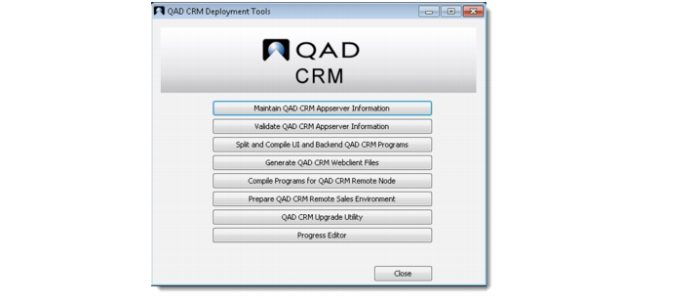
1 On the QAD CRM deployment server, run the QAD CRM Deployment Utility. The following window pops up.
2 Click the Compile Programs for QAD CRM Remote Node button.
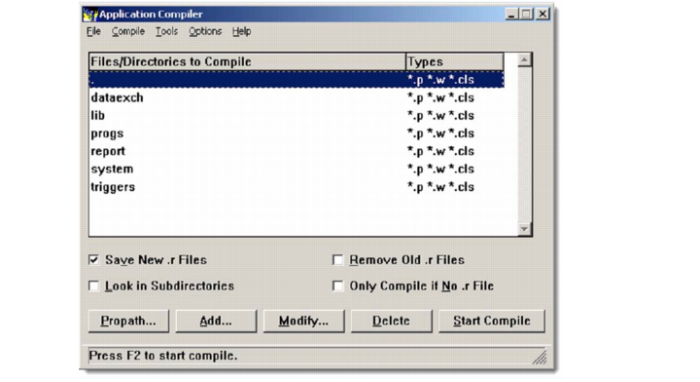
An application compiler screen pops up.
a Select Options|Compiler and make sure that both Minimize R-Code Size and Generate MD-5 are set to Yes.
b In the Application Compiler screen, clear the Look in Subdirectories check box and then click Start Compile to start the compilation.
c The application compiler generates a log file during compilation. Check the log file to ensure that there are no errors. Errors recorded in the log file begin with double asterisk characters. If any error occurs, contact QAD Support.
Note: If you are not sure about the location of the log file, check Options|Compiler and view the log file to check for errors.
3 Click the Prepare QAD CRM Remote Sales Environment button.
4 A message is displayed. Click Yes to copy required programs.