Converting 6.6.2 Databases to 6.6.3 Format
1 After CRM 6.6.3 is installed, remove all the Progress compiled code (*.r files) in the following folders from the newly installed QAD CRM 6.6.3 CD environment:
• dataexch
• lib
• integration\mfgpro
• progs
• report
• system
• triggers
2 Modify the crm663_install_dir\qadsfamaupgrade.pf file to connect to the QAD CRM 6.6.2 databases in multi-user mode. If your QAD CRM 6.6.2 databases have been configured in the self-service (shared memory) mode on your database server, temporarily restart using the client server mode to allow the CRM 6.6.3 Deployment Utility to access the databases from the Windows Deployment server.
3 Make sure that no other user is using the QAD CRM 6.6.2 databases that you are upgrading.
4 Convert your CRM 6.6.2 database to CRM 6.6.3.
a Click QAD CRM Deployment Utility.
Note: If you are running QAD CRM 6.6.2 databases on the server using Progress 10.1C, upgrade Progress to a version that QAD CRM 6.6.3 supports. See
Software Requirements for Database Server for the supported Progress versions.
b Modify all QAD CRM .ini files in crm_install_dir of your QAD CRM 6.6.3 installation. Change the DLC system variable and other Progress configuration parameters to point to a Progress version that CRM 6.6.2 database server uses.
c Modify the CRM 6.6.3 shortcut icons created as a result of CRM 6.6.3 installation, and ensure that they also reference the compatible Progress file prowin32.exe.
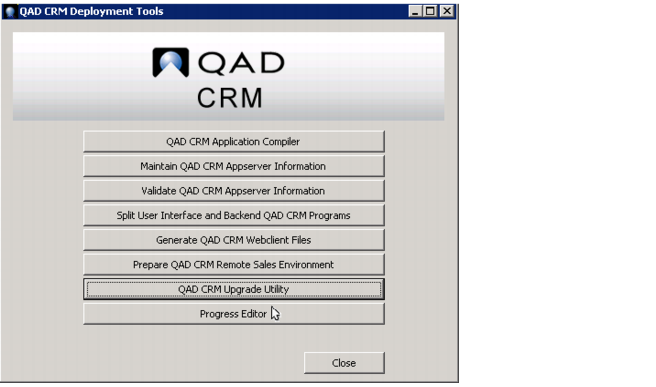
5 On the QAD CRM Deployment Tools screen, click QAD CRM Upgrade Utility.
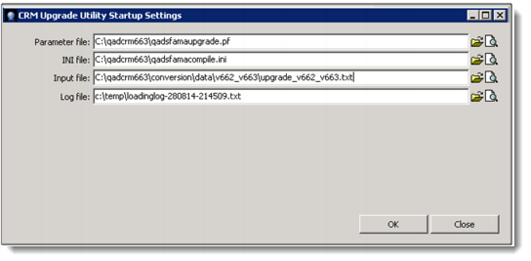
6 On the CRM Deployment Utility Startup Settings screen, fill in the following Utility settings, and click OK.
Parameter file.
Specify the name of the parameter file (qadsfamaupgrade.pf) to connect to your CRM 6.6.2 databases running in multi-user mode.
INI file.
It is pre-populated for you, by default.
Input file.
Specify the path to the upgrade_v661_v663.txt file. You can locate this file in the <crm663_install_dir>\conversion\v662_v663 folder.
Log file.
Specify the name of the log file.
7 After you fill in the Utility settings, you are prompted to check whether you have backed up the databases. Make sure that you have backed up the databases and click Yes to continue.
8 You see the following message after the data loading has been completed. You can click Yes to see if there are any errors recorded in the log file.
Note: There are no schema changes from 6.6.2 to 6.6.3. You should not see anything in the log file at this step. Just open the file to make sure that there is no error.
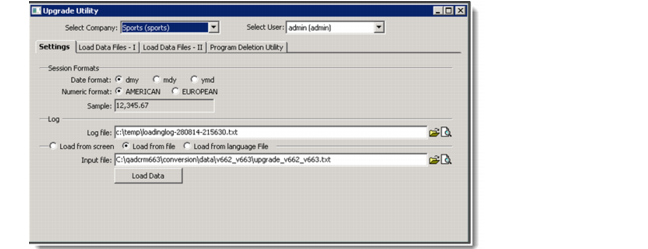
9 When Step 8 is successful, the Upgrade Utility screen appears.
a Make sure that the Load from file option is selected.
Important: Do NOT change the Session Formats selected by default, even if you are not using the date and the numeric format.
b Make sure that the Input file field displays the conversion file that you specified earlier; that is, crm663_install_dir\conversion\v662_v663\upgrade_v662_v663.txt.
c Click Load Data.
Note: After you click Load Data, you are prompted once again to confirm that your databases have been backed up. Click Yes to continue.
d After the data loading is complete, the system prompts you to view the log file. If you need any help to resolve errors in the log file, contact QAD CRM support.
e Close the Upgrade Utility window and any other Deployment utility windows, including the main Deployment Tools window.
Note: If you do not see any errors in the log file, your CRM 6.6.2 databases have now been upgraded to 6.6.3.