Logging In
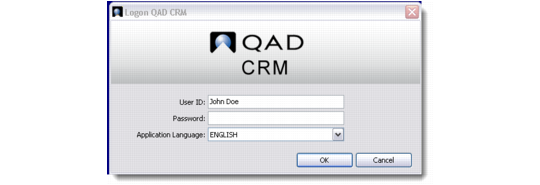
1 Click the system icon on your desktop to start the QAD CRM application. The log-in window displays.
2 Enter your user name in the User ID field.
Log In screen
3 Enter your password in the Password field.
4 In the Application Language field, enter the language in which you want to work with the system. The system supports multiple languages. If you specify the language, it appears in the Log-in screen by default.
Note: Your user profile also lets you set the system default language if it is not specified here.
5 Click OK.
6 If you select OK in the previous step, another window displays. From the Log On To drop-down, select the company you want to log in to.
7 Select the menu you want to see through the Use Menu drop-down.
Note: The Log On To and Use Menu drop-downs display only if you are allocated multiple companies and multiple menus.
8 Click OK.